Guide Sections
Configure WIQ Team File Feature (AWS & Azure)
AWS ONLY - Adding a File Feature to the WIQ ‘IT’ Team
Visit the WIQ website and add a Team File Feature for the IT team using the newly-provisioned S3 bucket, which should be named like
(customer name) + “-neverfail-s3-evidence-repository-1.”
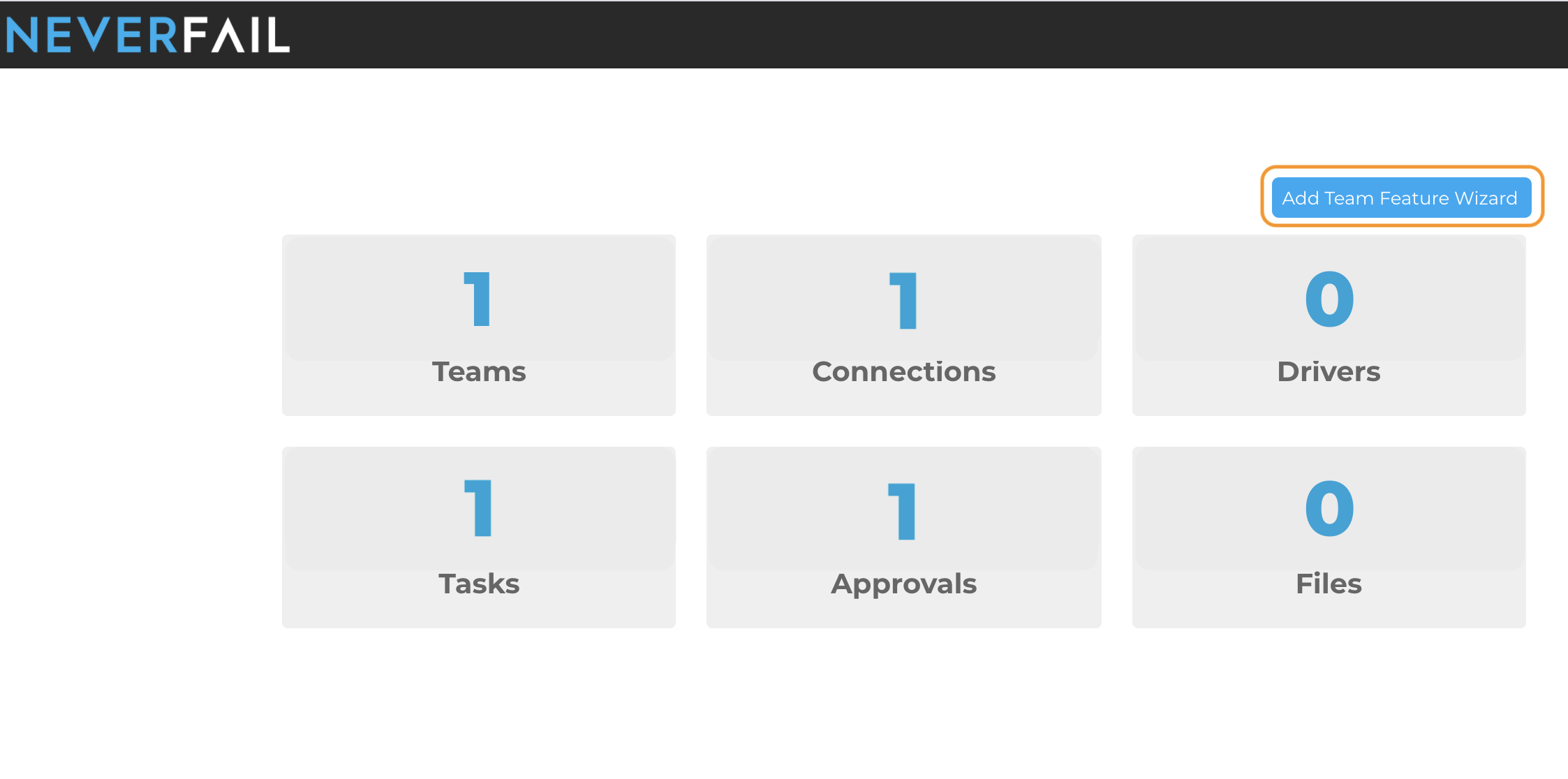
From the WIQ home dashboard page (https://prod.neverfail.com/), click on the Add Team Feature Wizard to get started.
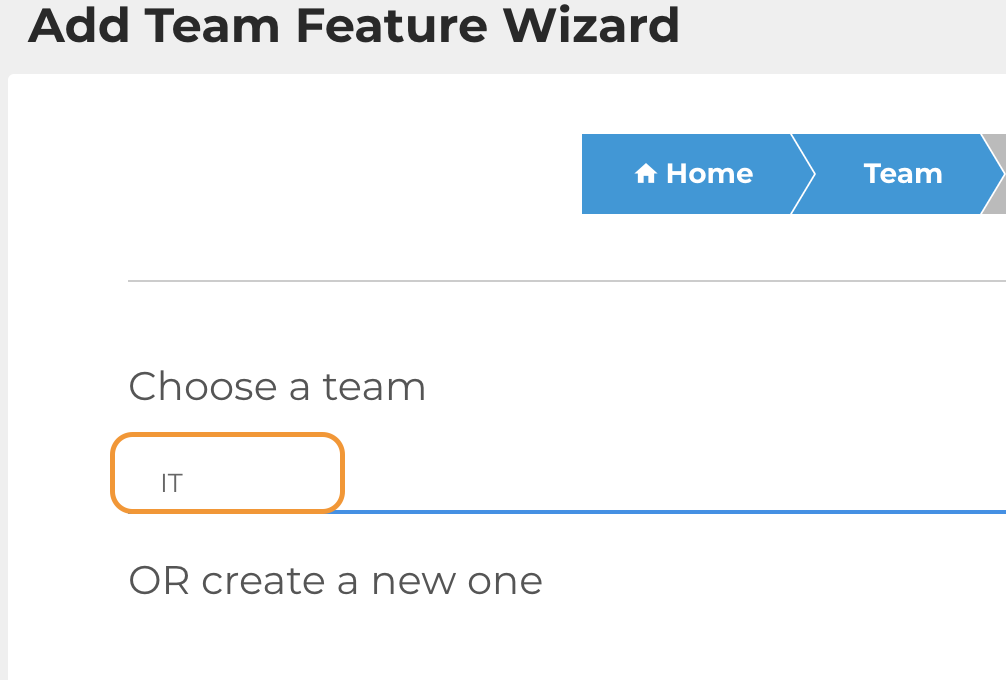
Select your “IT” team from the drop down.
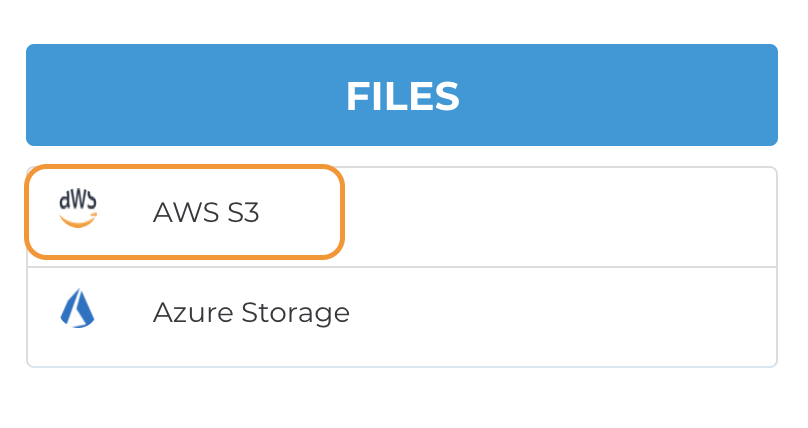
Under the FILES column, select AWS S3.
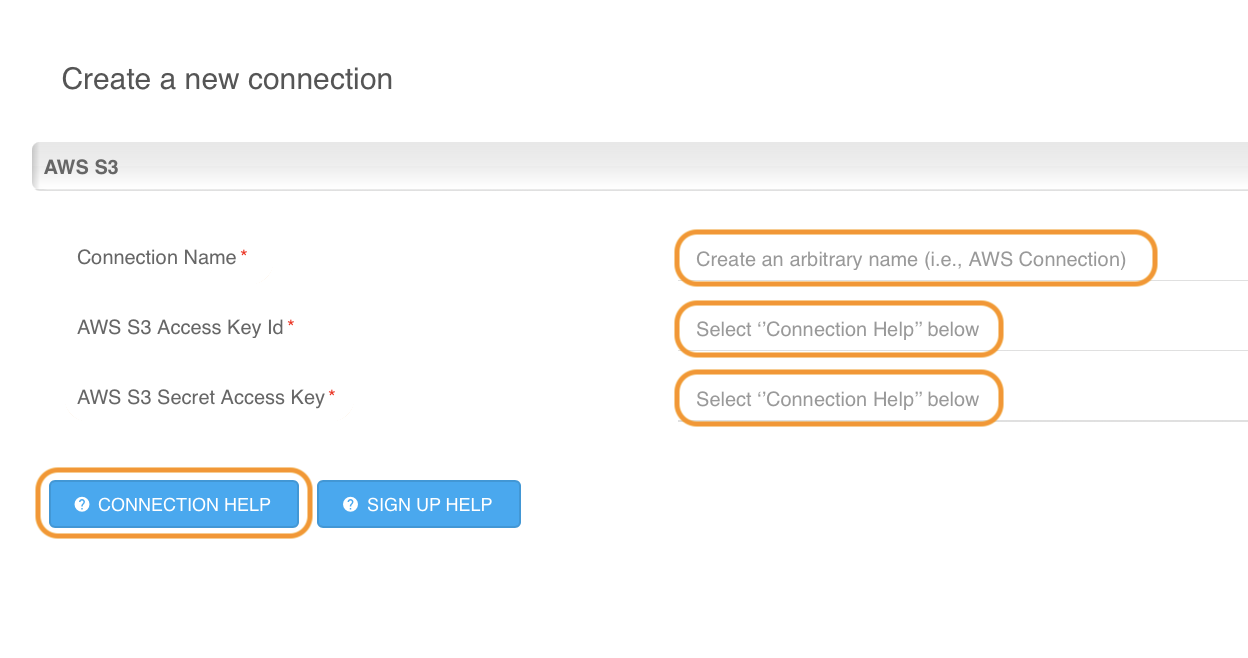
Choose the option to create a new connection and select AWS S3 again.

From this point forward, you will follow the onboard instructions in WIQ, provided in the following:
- Default field descriptions
- “Connection Help” button
Azure ONLY - Adding a File Feature to the WIQ ‘IT’ Team
Visit the WIQ website and add a Team Storage Feature for the IT team using the newly-provisioned Azure storage blob container.
Retrieving Azure Container Connection String
Review your storage accounts in the Azure portal, then click on the one with a label name beginning with your (customer name) + “evidencesa1".
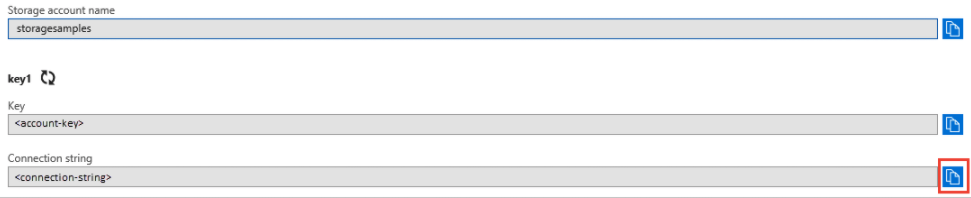
Under Settings, select Access keys. Your account access keys appear, as well as the complete connection string for each key.
Find the Connection string value under key1, and click the Copy button to copy the connection string.
Adding Files Feature to WIQ
From the WIQ home dashboard page (https://prod.neverfail.com/), click on the Add Team Feature Wizard to get started.
Select your “IT" team from the drop down .
Under the FILES column, select Azure Storage.

Choose the option to create a new connection and select Azure Storage again.
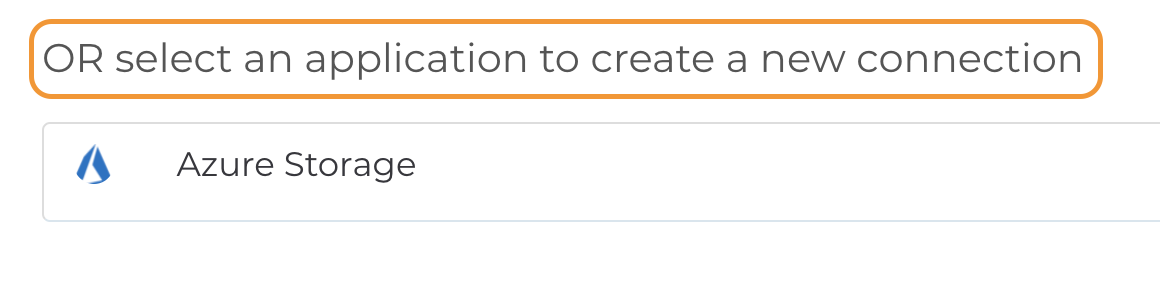
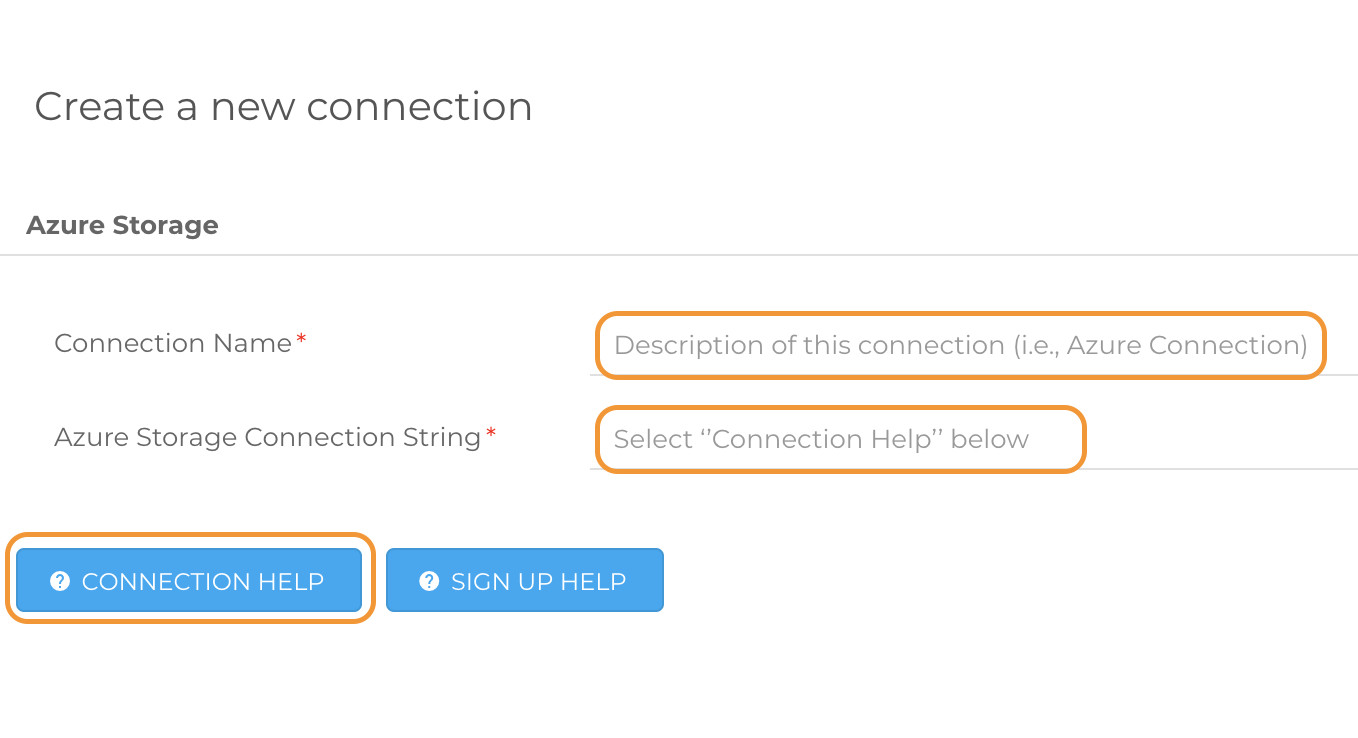
From this point forward, you will follow the onboard instructions in WIQ, provided in the following:
- Default input field descriptions
- “Connection Help” button