AWS Control Test Guide
AWS - Sandbox Auditlogic & Control Test Guide
Control Test Detailed Reference
In this reference document, framework principles, population and evidence collection, evidence types, and assessment criteria will be provided. If a remediation bot exists for a particular test, this will also be annotated here.
AWS Control Tests Included
The following AWS Control Tests are included in your AWS Compliance Test Suite. More details are available in the Control Test Detailed Reference section below.
- Public Access Blocked on S3 Cloud Storage
- Production EC2 Instances Have RPO Less Than 48 Hours
- EC2 Instance Volumes Have Backup Policy Assigned
- Production RDS Databases Have RPO Less than 48 Hours
- Production RDS Databases Have Secure Configuration
Control Test 1: Public Access Blocked on S3 Cloud Storage
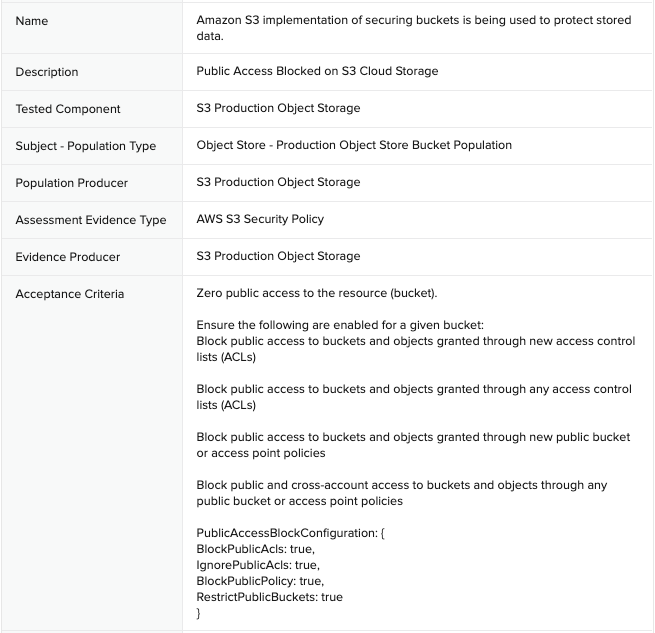 Sample Auditee SOC 2 Control and Principles
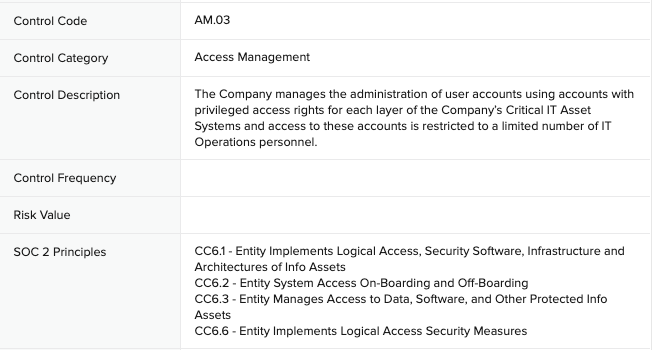
SOC 2 Template Controls and Principles

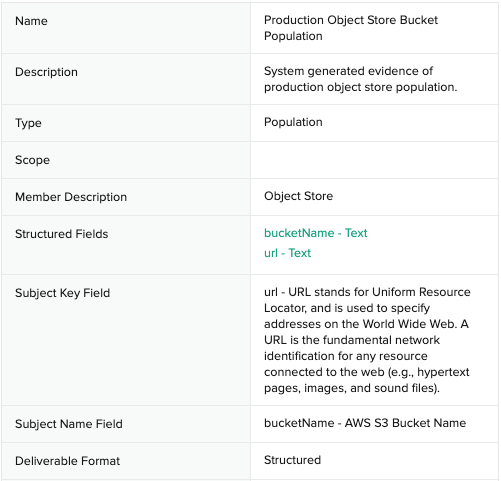
Population: Production Object Store Buckets
Evidence: AWS S3 Bucket Security Policy
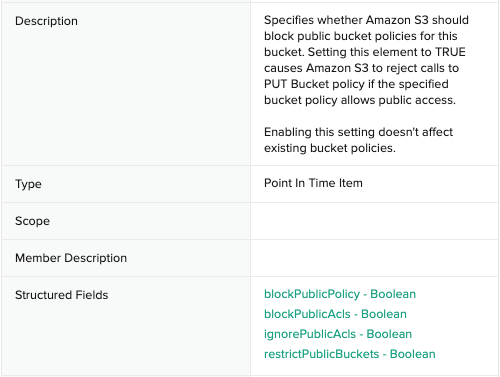
Evidence Collection KB: How to get AWS S3 Bucket Security Policy
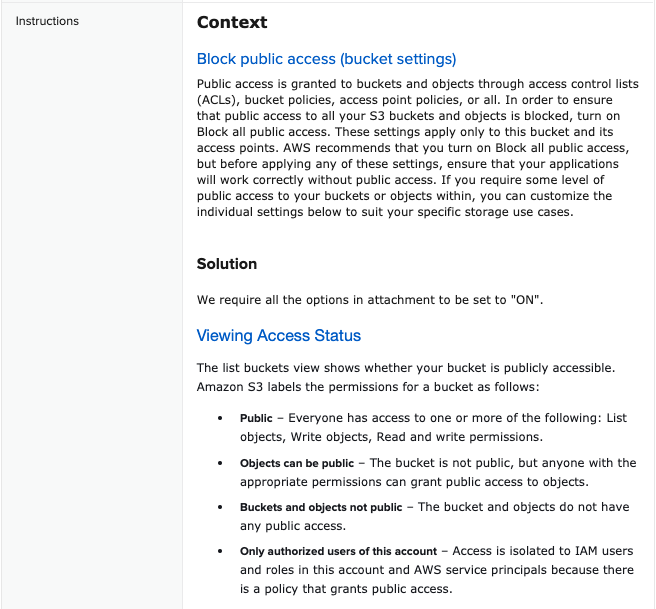
Automated Assessment Gherkin
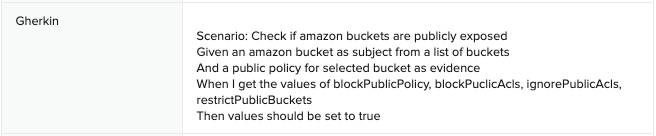
Remediation Bot: Block S3 bucket public access
The Continuous Controls remediation bot uses S3 APIs to block all public access. For more information: Using Amazon S3 block public access.
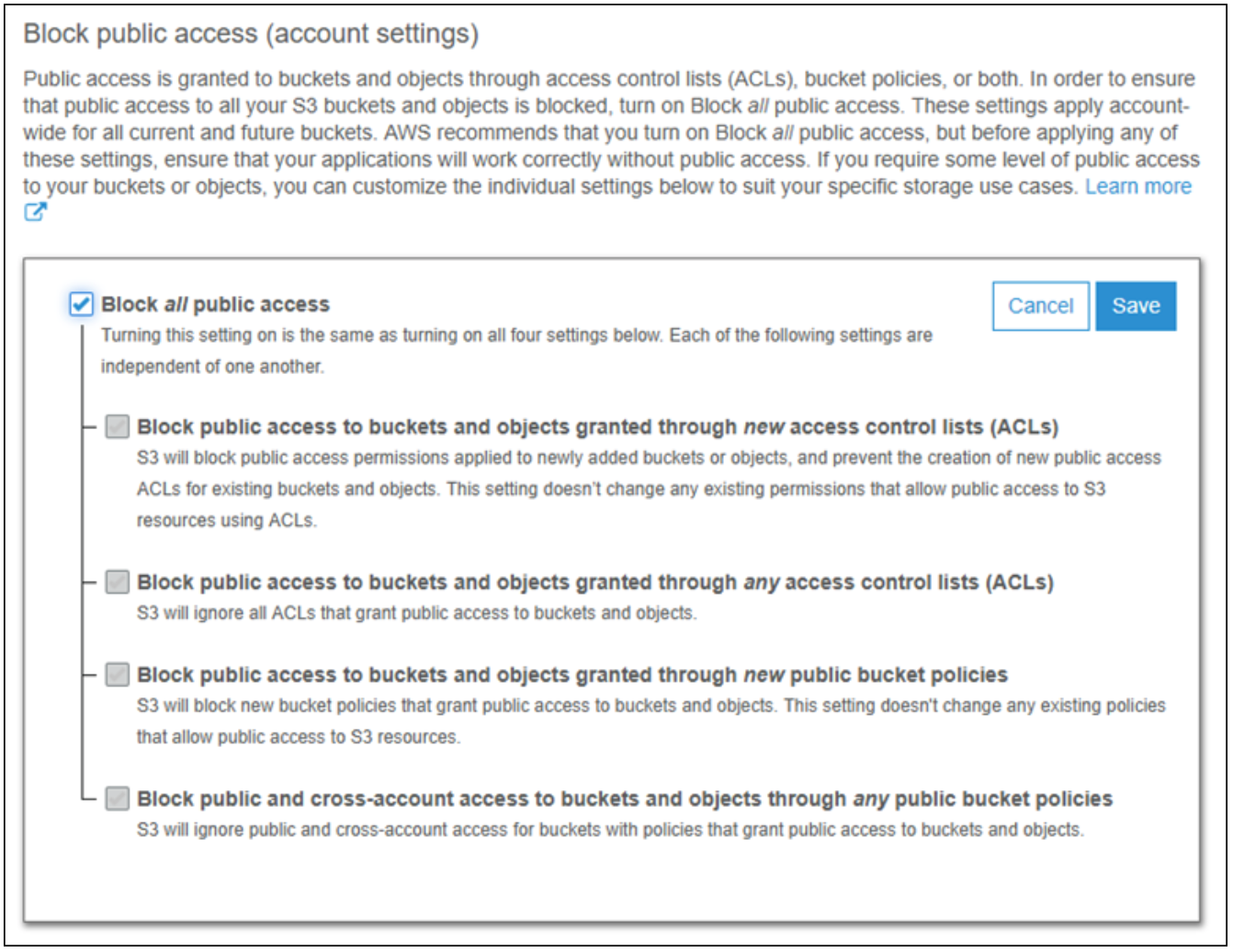
Toggling Test Outcome: Public Access Blocked on S3 Cloud Storage
Toggle to Fail
Based on the test assessment criteria, follow these instructions to create conditions for a failed test.
- Login to AWS console at https://aws.amazon.com, then navigate to the AWS S3 service panel (or search for “S3”).
- Review the bucket list and click on the one with label “
CUSTOMER_NAME-neverfail-s3-production-object-storage-1.” This is an S3 bucket with a special tag applied of “environment”:”nfcc-production,” which simulates tag application in the real-world. - On the bucket detail view, click the Permissions tab to view the access settings.
- Under the Block public access section, click the Edit button on the far right-hand side.
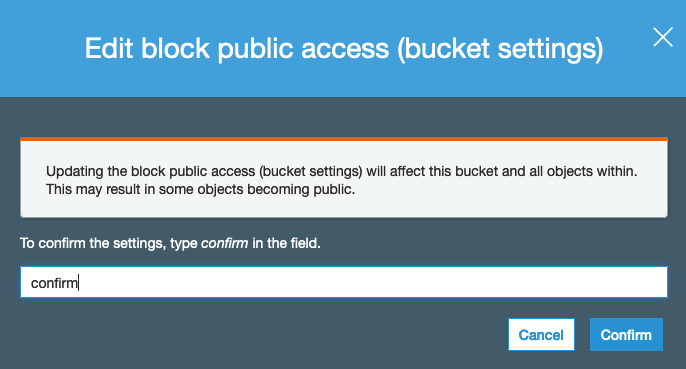
- Uncheck Block all public access checkbox, and optionally check or uncheck any of the sublist checkboxes, then click Save.
- If you get a confirmation window, follow the instructions.
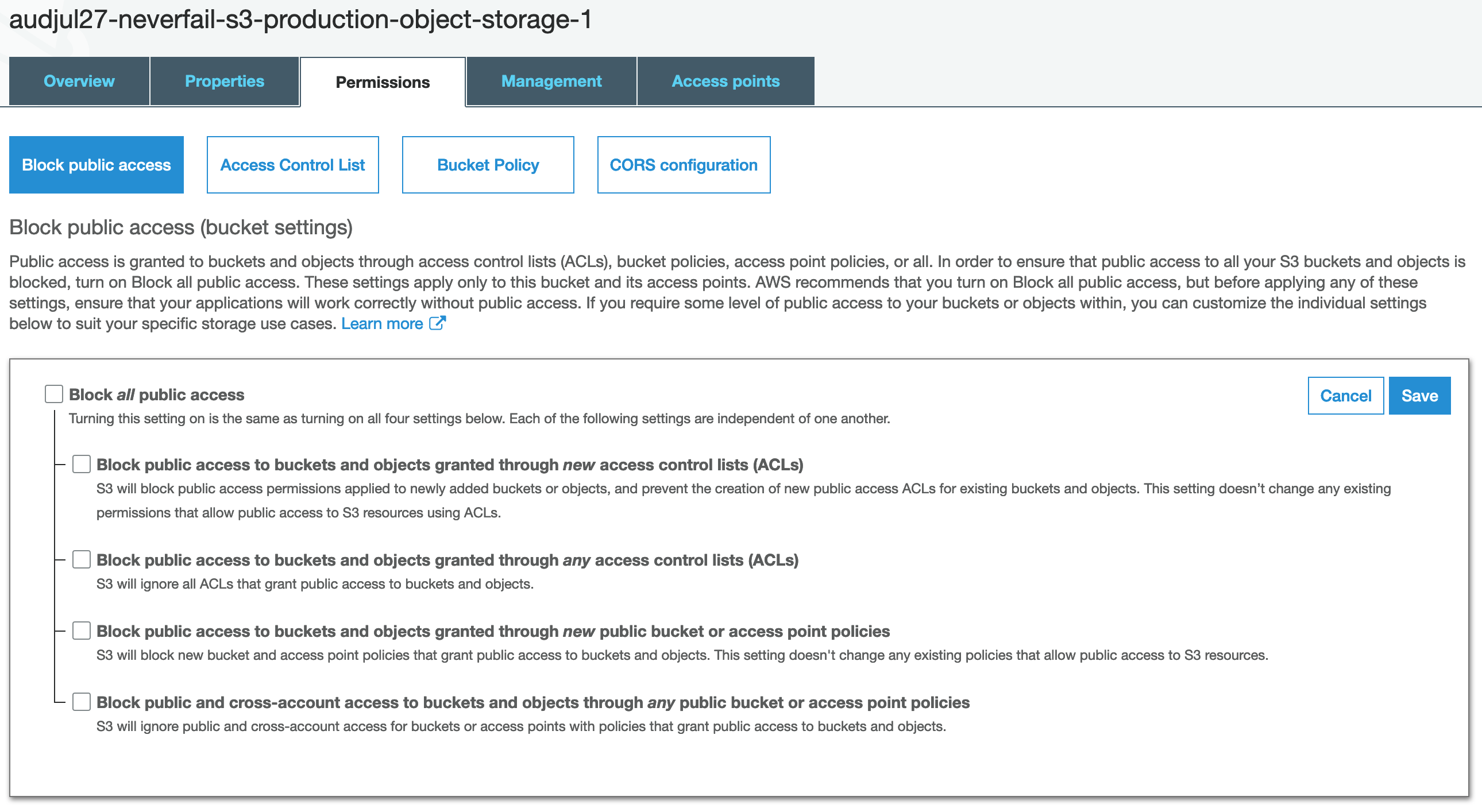
Toggle to Pass
Based on the test assessment criteria, follow these instructions to create conditions for a passed test.
- Follow steps 1-4 above to get to place where the bucket settings can be edited.
- Click (check) the Block all public access box, then click Save.
Control Test Section #1 is DONE!
Open your Power BI dashboard to view the toggled test outcomes data from this exercise.
UP NEXT: Return to your task system and close out this ticket, then keep an eye out for your next task.
Control Test 2: Production EC2 instances have RPO less than 48 Hours
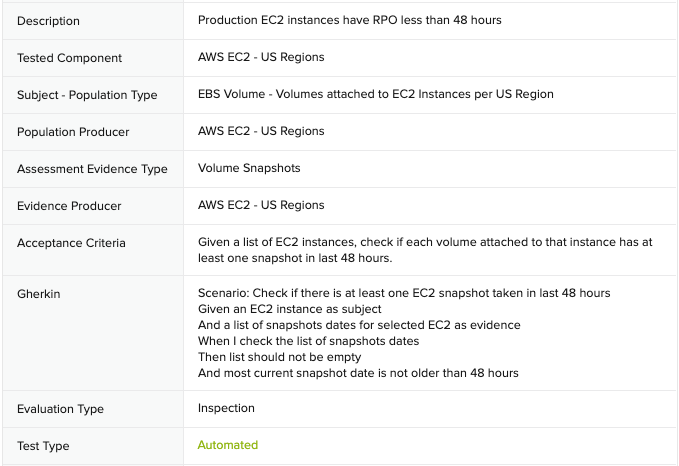
Sample Auditee SOC 2 Control and Principles
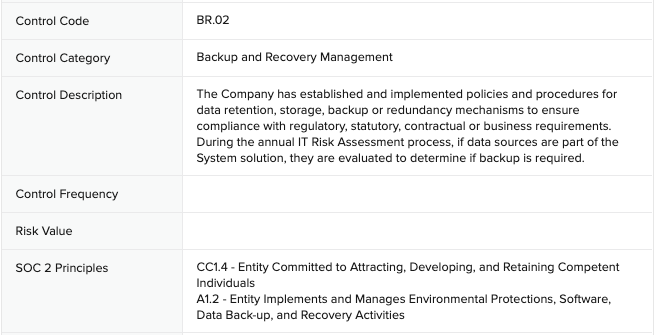
SOC 2 Template Controls and Principles

Population: EBS Volumes attached to Production EC2 Instances - US Regions
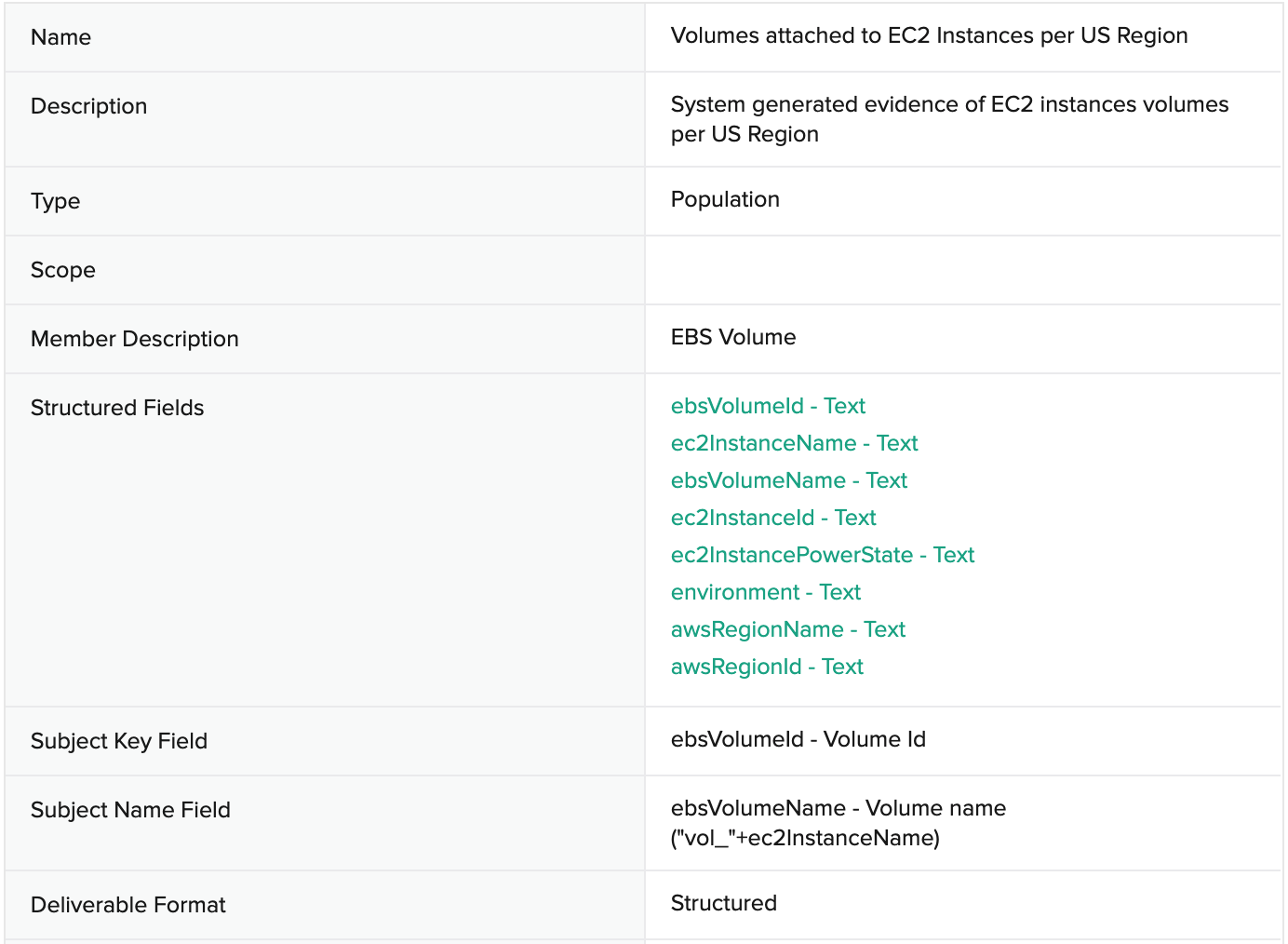
Evidence: Volume Snapshots
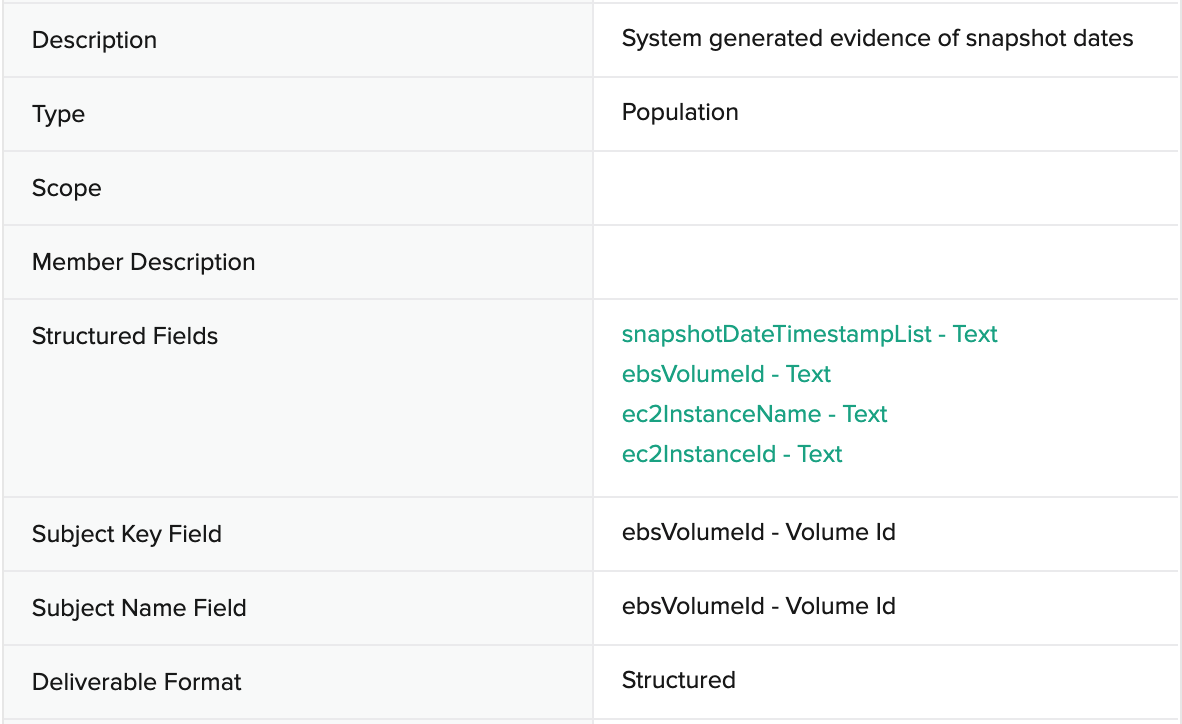
Evidence Collection KB: How to get Volume Snapshots from Amazon Elastic Container Service (Amazon ECS)
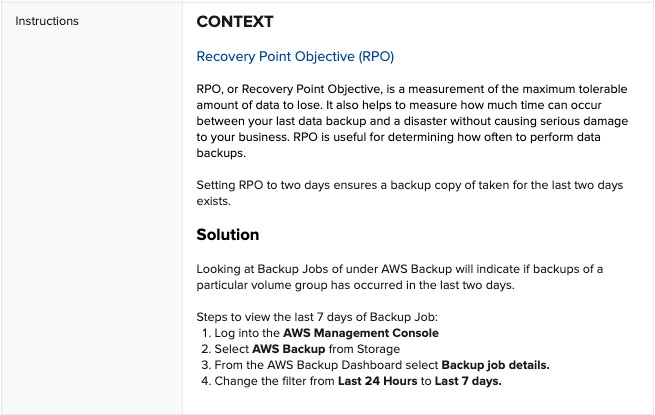
Automated Assessment

Remediation Bot
The remediation bot will take a new snapshot of the volumes attached to the EC2 instance, thereby bringing it into adherence to an RPO of less than 48 hours.
Toggling Test Outcome: Production EC2 instances have RPO less than 48 Hours
Toggle to Fail
Based on the test assessment criteria, follow these instructions to create conditions for a failed test.
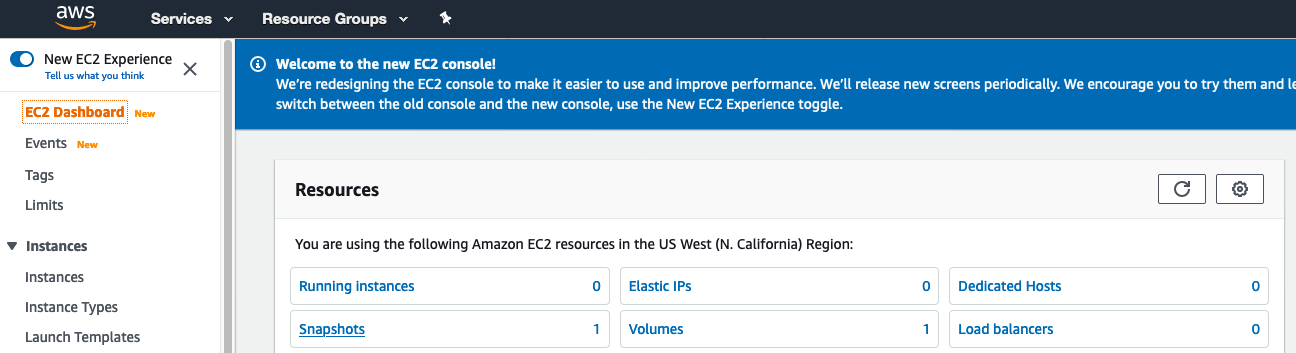
Login to AWS console at https://aws.amazon.com, then navigate to the AWS EC2 service panel.
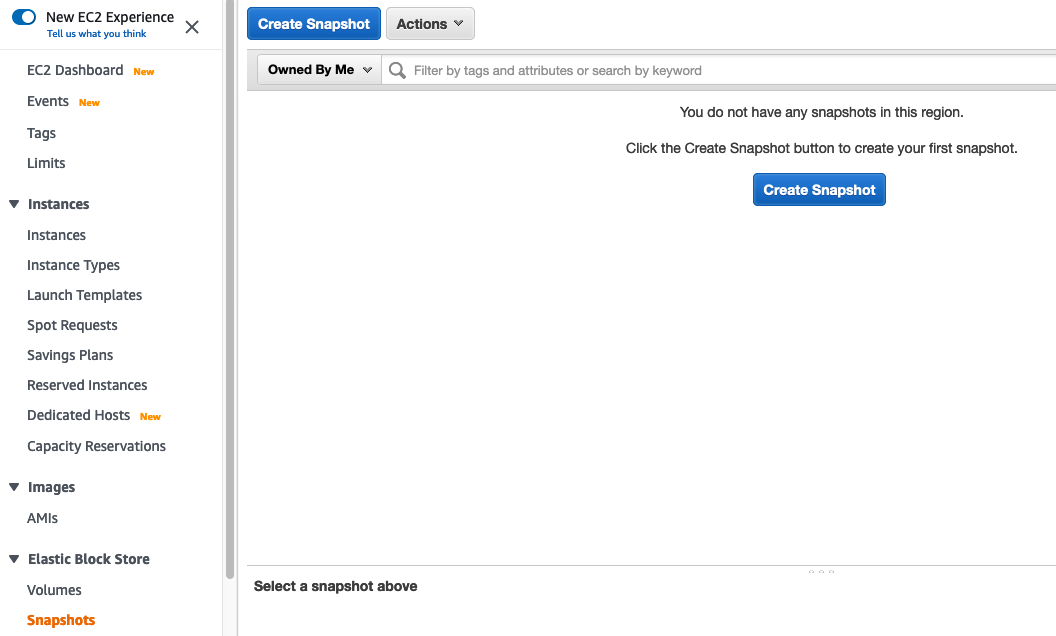
Click on Snapshots from the Dashboard or from further down on the left-hand menu.

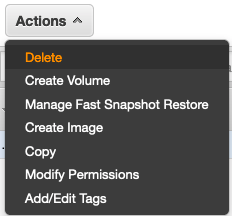
Select the tickbox to the left of each snapshot for the POC EC2 VM within 48 hours of the current time. You may have more than one snapshot to select. Make sure you are only deleting snapshots related to the EC2 Instance with name like -ec2-instance-1.
Click the Actions button above, then select Delete.
Click Yes, Delete on the confirmation window.
Toggle to Pass
Based on the test assessment criteria, follow these instructions to create conditions for a passed test.
- Login to AWS console at https://aws.amazon.com, then navigate to the AWS EC2 service panel.
- From the EC2 service panel, click Snapshots from the left-hand menu, under Elastic Block Store.
- Click Create Snapshot.
- On the next screen, change resource type to Instance, then click into the Instance ID field to search for and select the EC2 instance labeled
-ec2-instance-1. 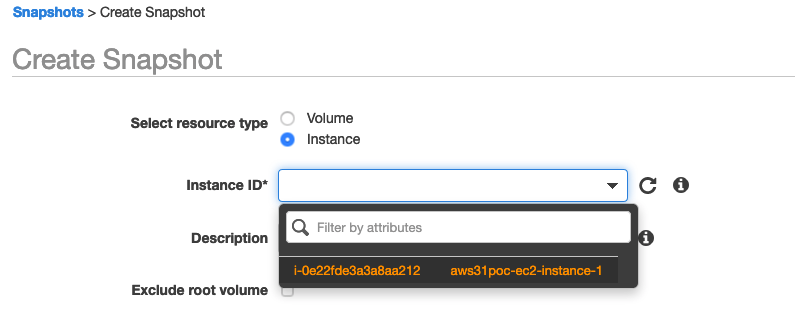
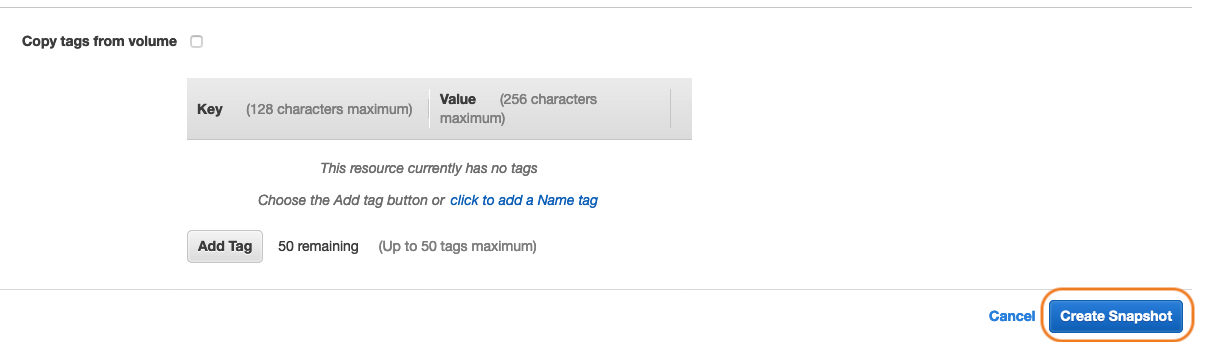
- Once the Instance ID is displayed, click the Create Snapshot button on the lower-right.
Control Test Section #2 is DONE!
Open your Power BI dashboard to view the toggled test outcomes data from this exercise.
UP NEXT: Return to your task system and close out this ticket, then keep an eye out for your next task.
Control Test 3: Production EC2 Instance Volumes Have Backup Policy Assigned via Rule
Sample Auditee SOC 2 Control and Principles
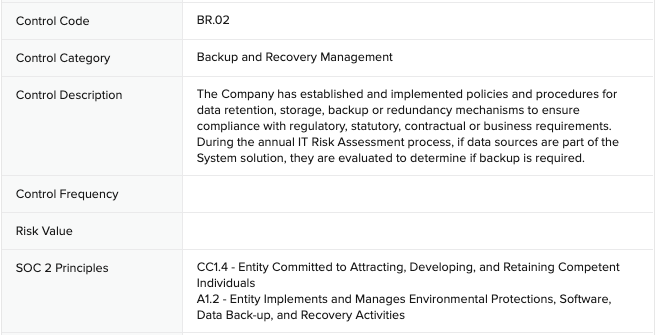
SOC 2 Template Controls and Principles

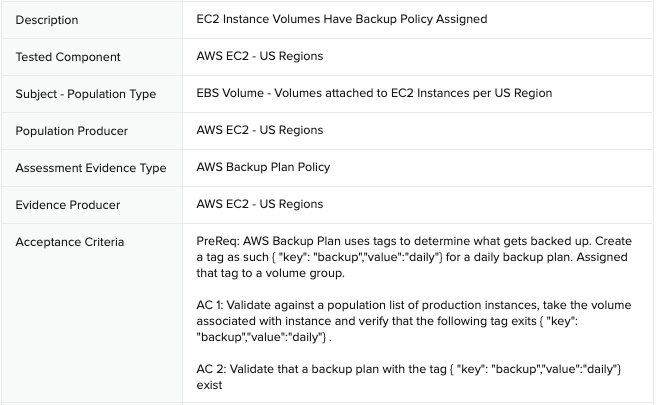
Population: EBS Volumes attached to Production EC2 Instances - US Regions
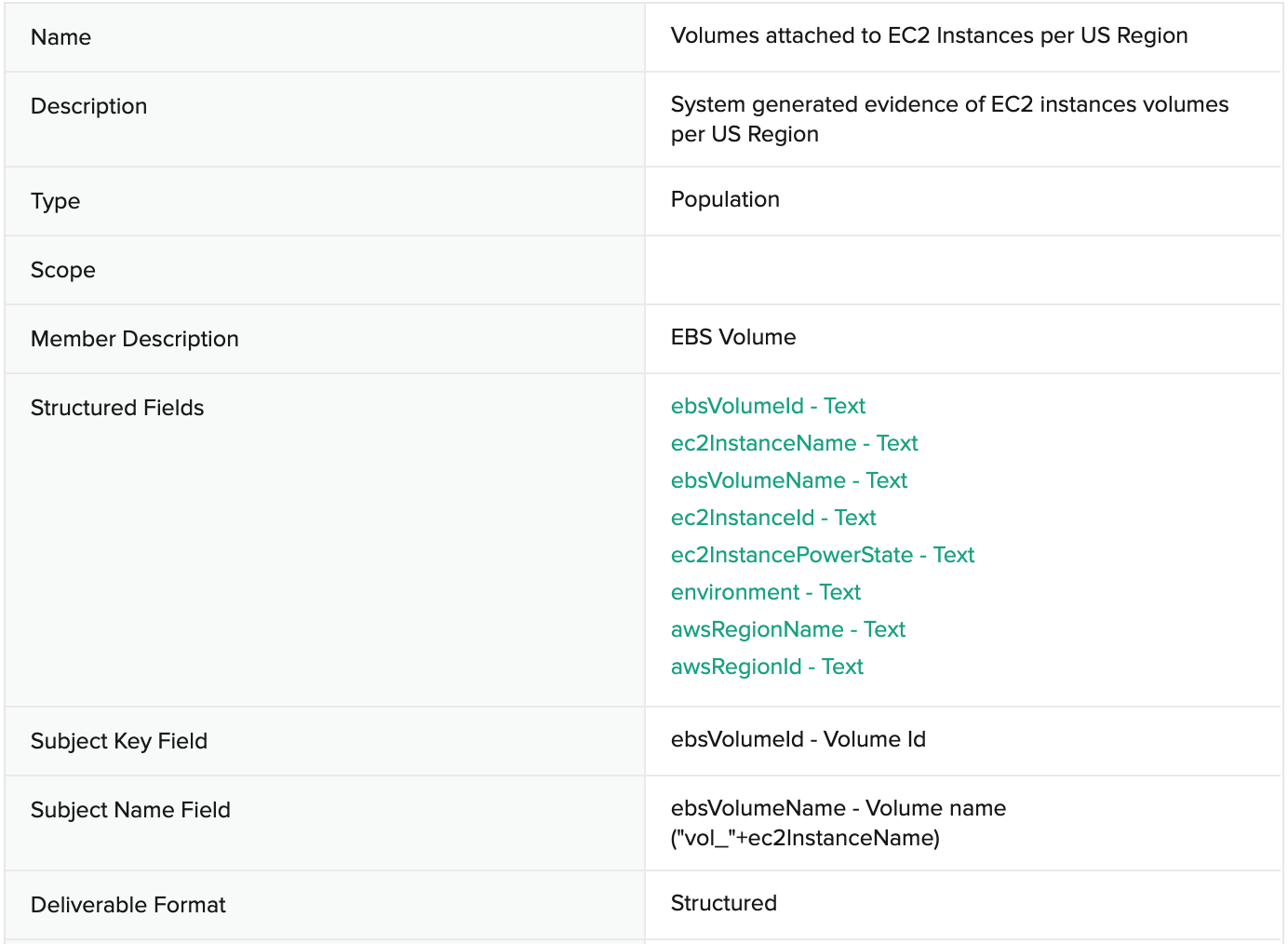
Evidence: AWS Backup Plan Policy
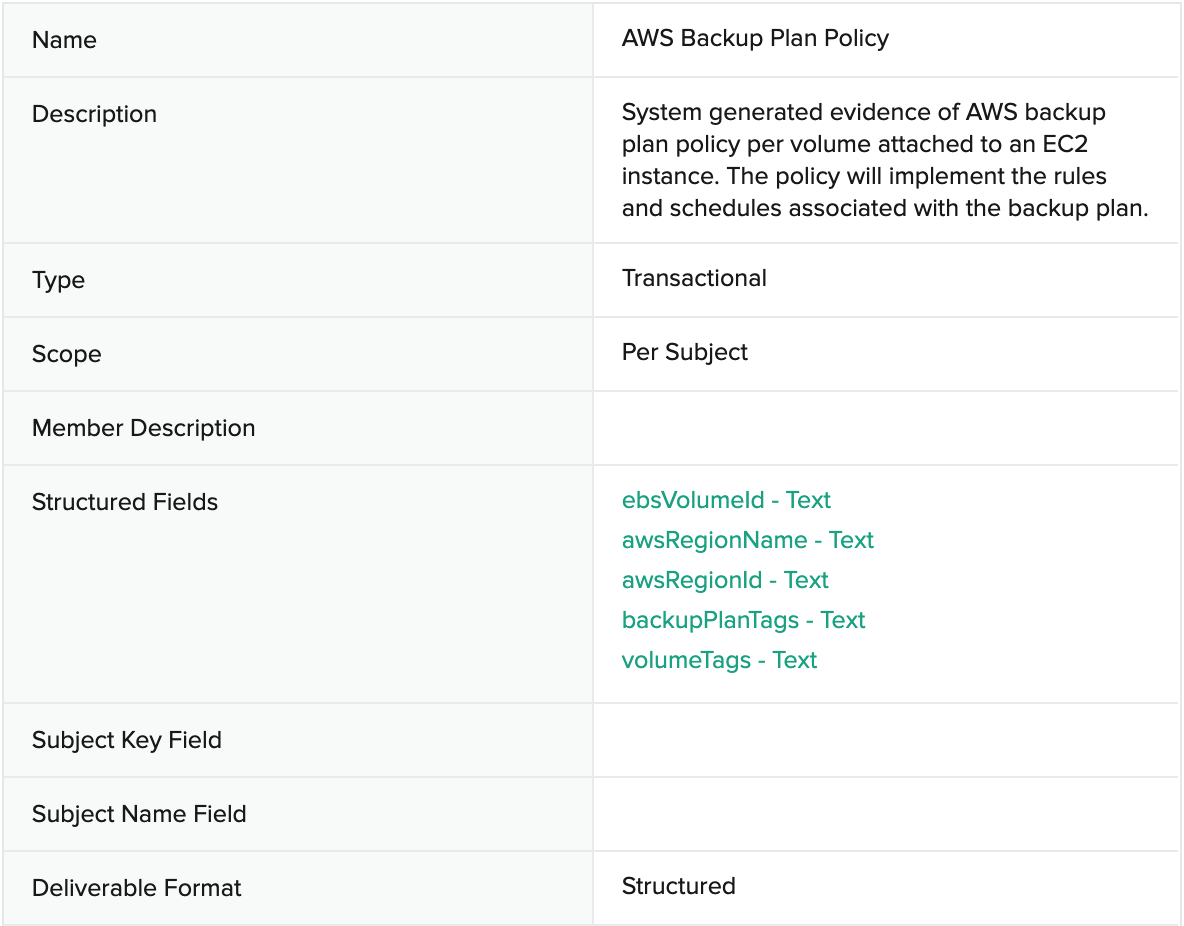
Evidence Collection KB: How to get AWS Backup Plan Policy
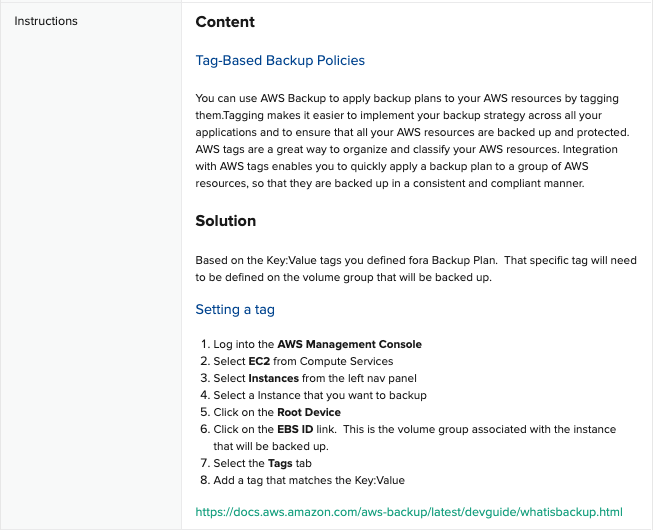
Automated Assessment

Remediation Bot: Set AWS Backup Plan Policy by Tag
In this case, the remediation bot re-applies a tag to the volume which will add it to a Backup Plan Policy based on the value of this tag. For the purposes of the deployment, the uses the following example tag, but in your real AWS environment, any tag can be configured on a customer-specific basis:
“Key”: “backup”, “Value”: “daily”
Toggling Test Outcome: Production EC2 Instance Volumes Have Backup Policy Assigned via Rule
Toggle to Fail
Based on the test assessment criteria, follow these instructions to create conditions for a failed test.
- Login to AWS console at https://aws.amazon.com, then navigate to the AWS EC2 service panel.
- From the EC2 service panel, click Volumes from the left-hand menu, under Elastic Block Store.
- Click on the EC2 instance with label
-ec2-instance-volume-1 - Click on the Tags tab halfway down the screen, then click the Add/Edit Tags button.
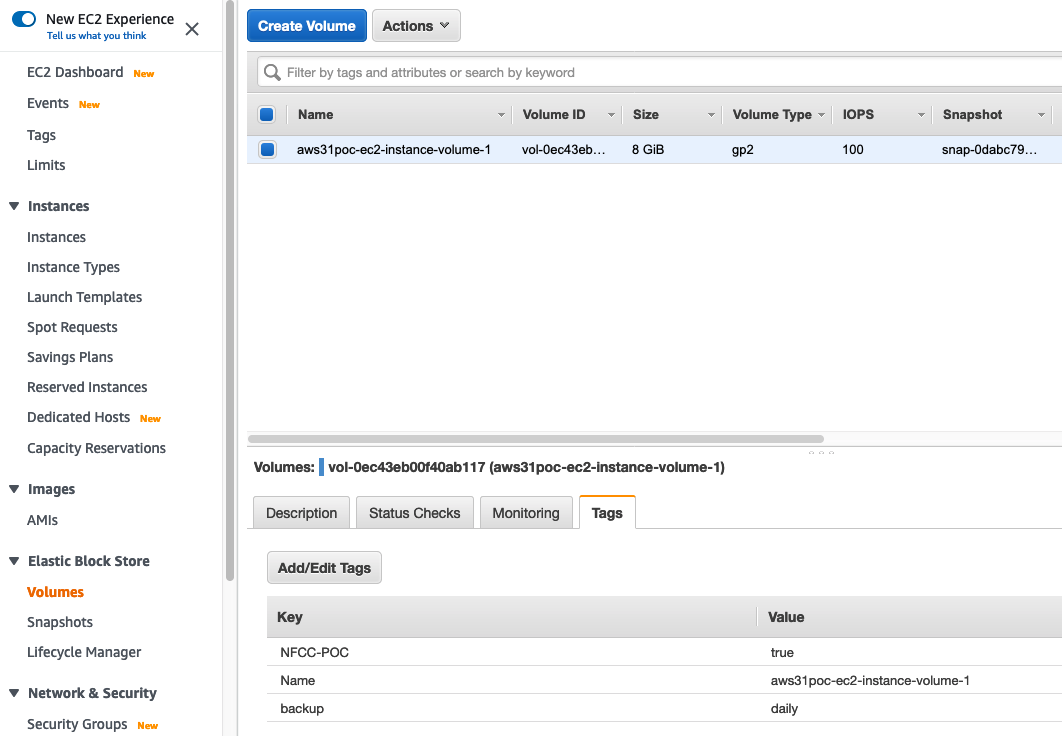
- Click the “X” circle next to the “backup”:”daily” key:value pair to remove the tag, then click Save.
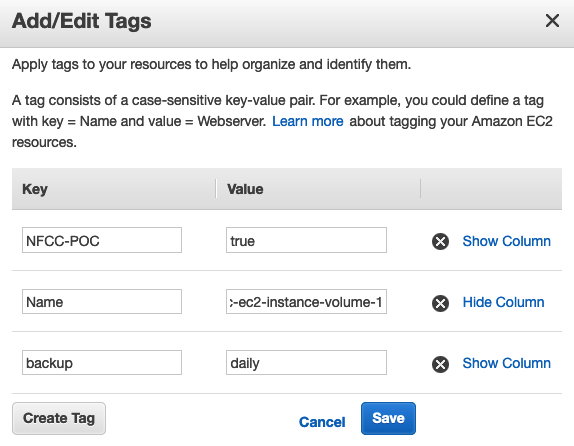
_
Toggle to Pass_
Based on the test assessment criteria, follow these instructions to create conditions for a passed test.
Login to AWS console at https://aws.amazon.com, then navigate to the AWS EC2 service panel.
From the EC2 service panel, click Volumes from the left-hand menu, under Elastic Block Store.
Click on the EC2 instance with label -ec2-instance-volume-1
Click on the Tags tab halfway down the screen, then click the Add/Edit Tags button.
Click Create Tag, then populate the key field with “backup” and the value field with “daily.”
Control Test Section #3 is DONE!
Open your Power BI dashboard to view the toggled test outcomes data from this exercise.
UP NEXT: Return to your task system and close out this ticket, then keep an eye out for your next task.
Control Test 4: Production RDS Databases Have RPO Less than 48 Hours
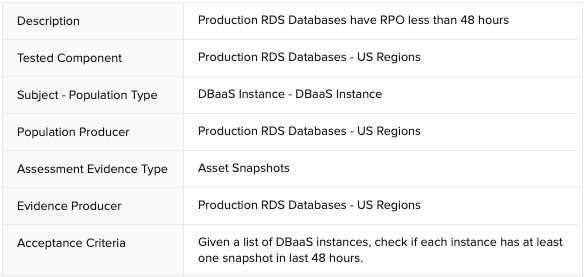
Sample Auditee SOC 2 Control and Principles
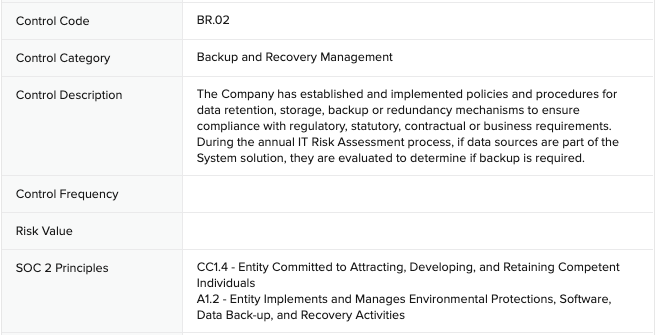
SOC 2 Template Controls and Principles
Population: DBaaS Instances - US Regions
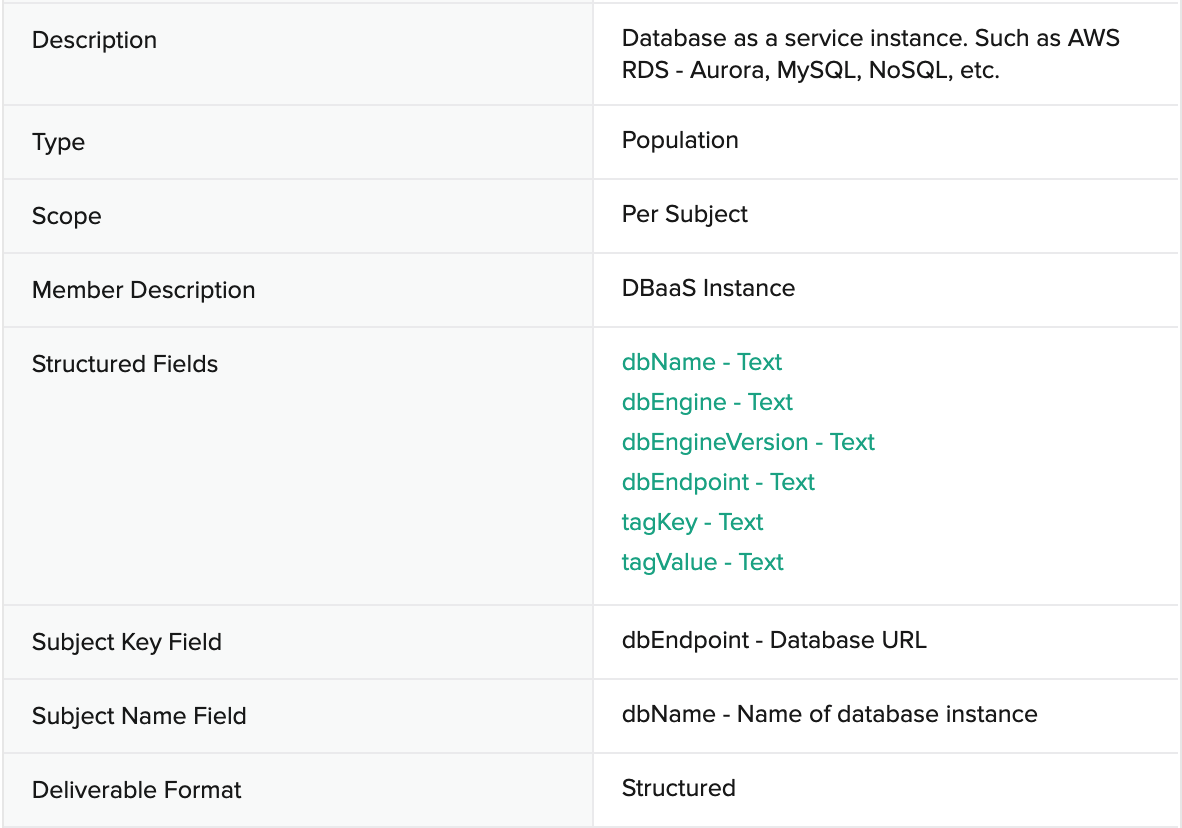
Evidence: Asset Snapshots
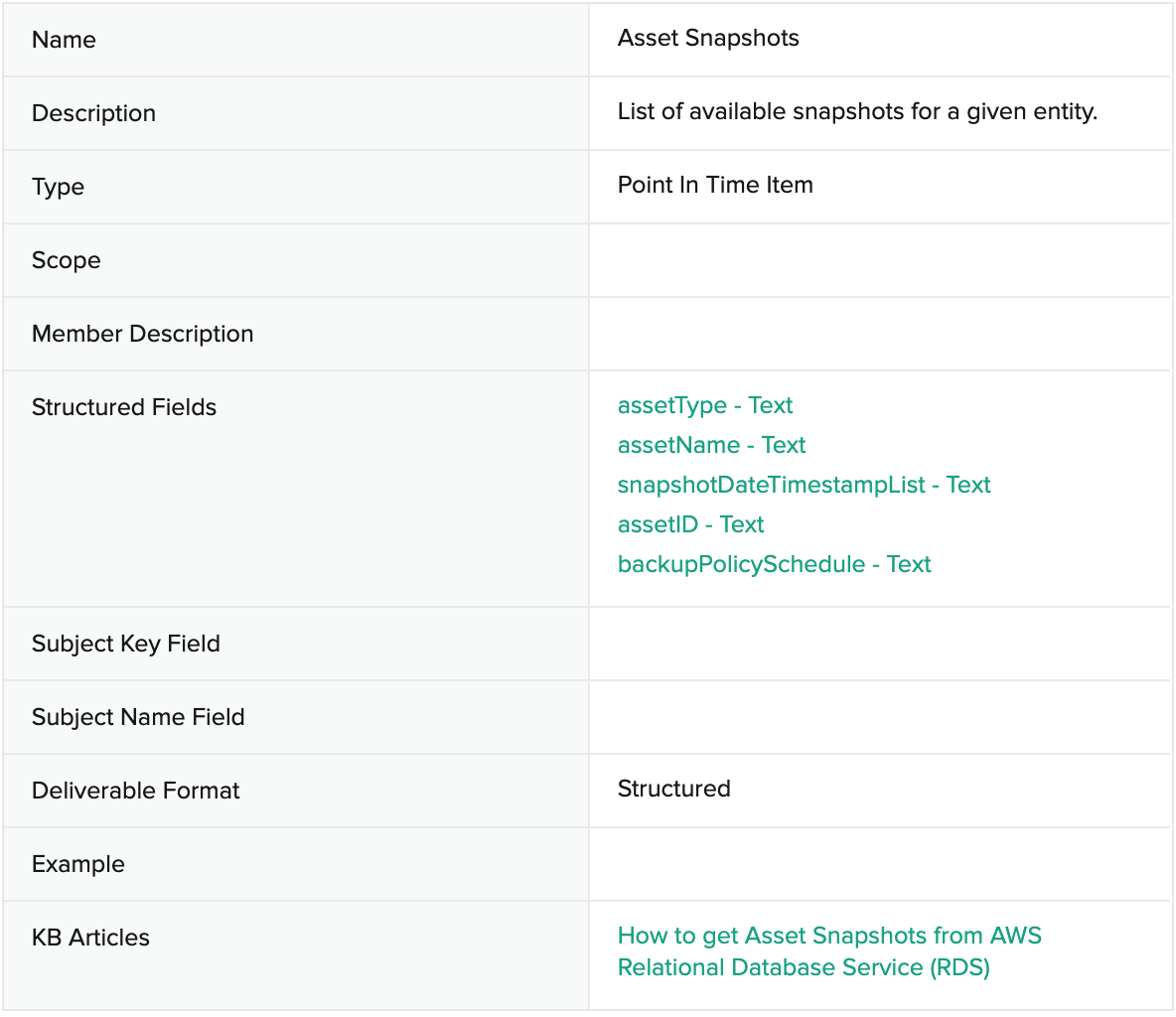
Evidence Collection KB: How to get Asset Snapshots from AWS Relational Database Service (RDS)
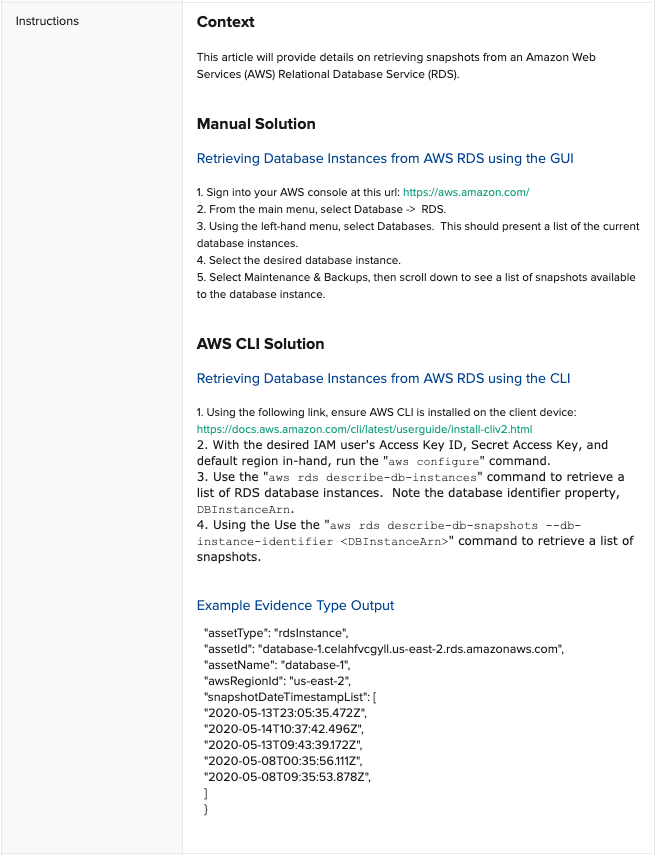
Automated Assessment

Remediation Bot: Create RDS DBaaS Instance Snapshot
The remediation bot will take a new snapshot of the RDS DBaaS instance, thereby bringing it into adherence to an RPO of less than 48 hours.
Toggling Test Outcome: Production RDS Databases Have RPO Less than 48 Hours
_
Toggle to Fail_
Based on the test assessment criteria, follow these instructions to create conditions for a failed test.
- Login to AWS console at https://aws.amazon.com, then navigate to the AWS RDS service panel.
- From the RDS service panel, click Databases from the left-hand menu, then click on the database on the right with name
-db-1.
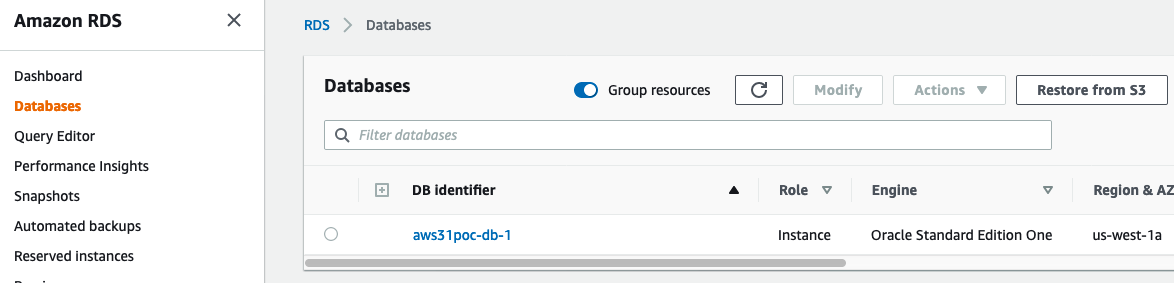
- Click the Modify button on the top-right to access the configuration.
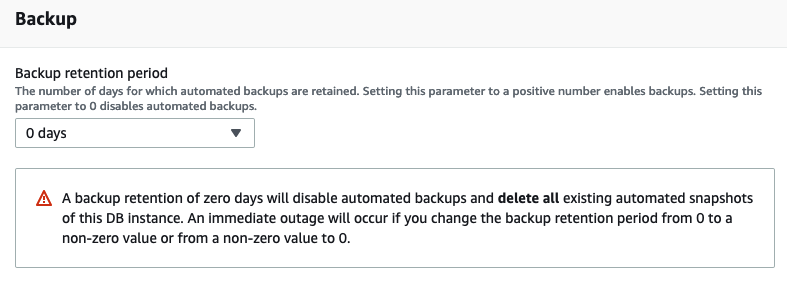
- Scroll down to the Backup section, then select 0 days for the Backup retention period.
- Scroll to the bottom and click Continue.
- Under Scheduling of modifications, click Apply immediately, then click Modify DB Instance.
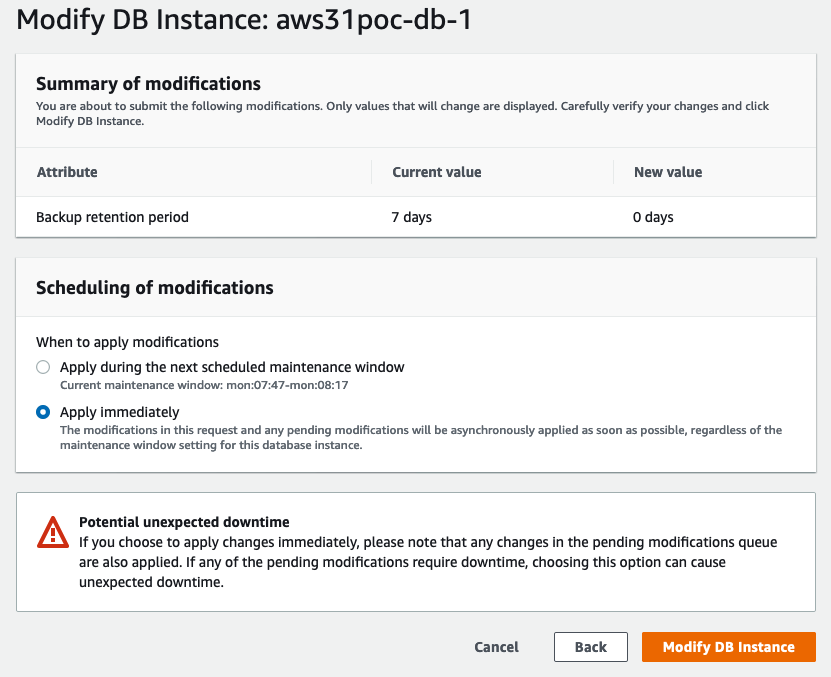
- AWS can take up to two minutes to enact the change. You may want to keep refreshing on the database detail view page until the change is displayed.
Toggle to Pass
Based on the test assessment criteria, follow these instructions to create conditions for a passed test.
- Login to AWS console at https://aws.amazon.com, then navigate to the AWS RDS service panel.
- From the RDS service panel, click Databases from the left-hand menu, then click on the database on the right with name
-db-1. - Scroll down to the Backup section, then select 2 days (or more) for the Backup retention period.
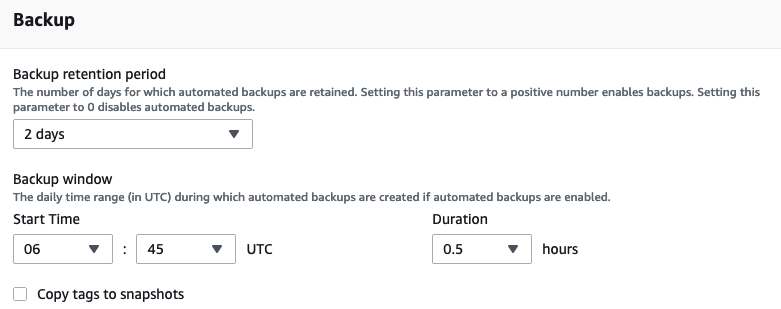
Scroll to the bottom and click Continue.
Under Scheduling of modifications, click Apply immediately, then click Modify DB Instance.
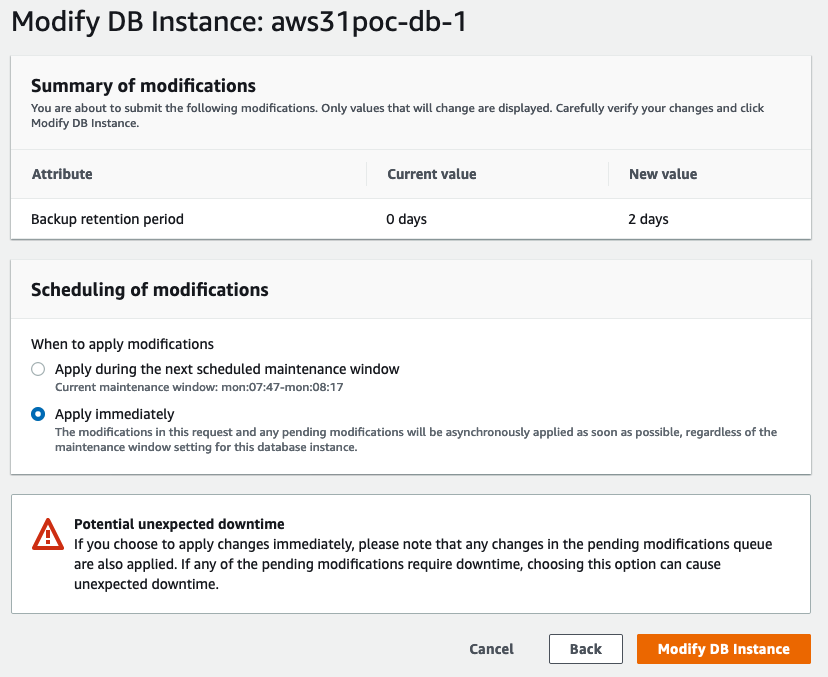
AWS can take up to two minutes to enact the change. Keep in mind that this will put the policy back in place but the test will continue to fail until a daily snapshot is taken by the system, and the RPO is returned to less than 48 hours. However, if you want to also make the test pass again immediately, you will need to take a manual snapshot.
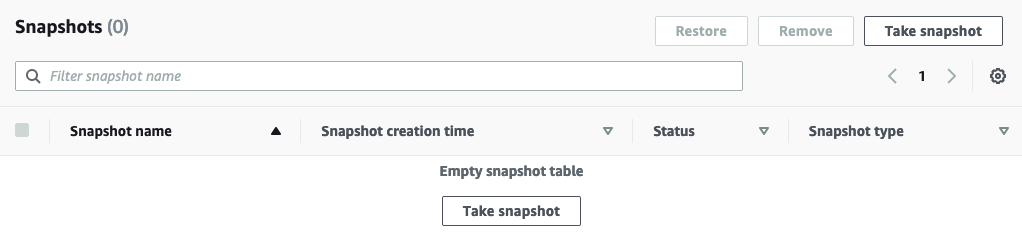
(To take an immediate snapshot) From the database detail view, scroll down to the Snapshots section and click Take snapshot.
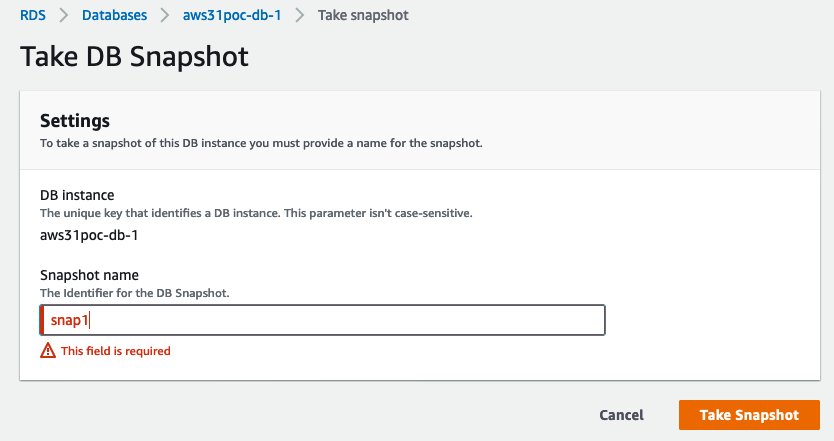
On the next page, add an arbitrary snapshot name, like “snap1,” then click Take Snapshot.
Control Test Section #4 is DONE!
Open your Power BI dashboard to view the toggled test outcomes data from this exercise.
UP NEXT: Return to your task system and close out this ticket, then keep an eye out for your next task.
Control Test 5: Production RDS Databases Have Secure Configuration
Sample Auditee SOC 2 Control and Principles
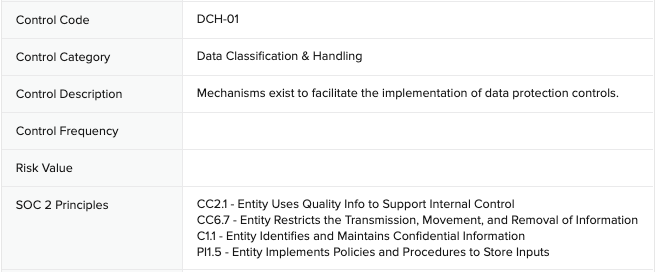
SOC 2 Template Controls and Principles

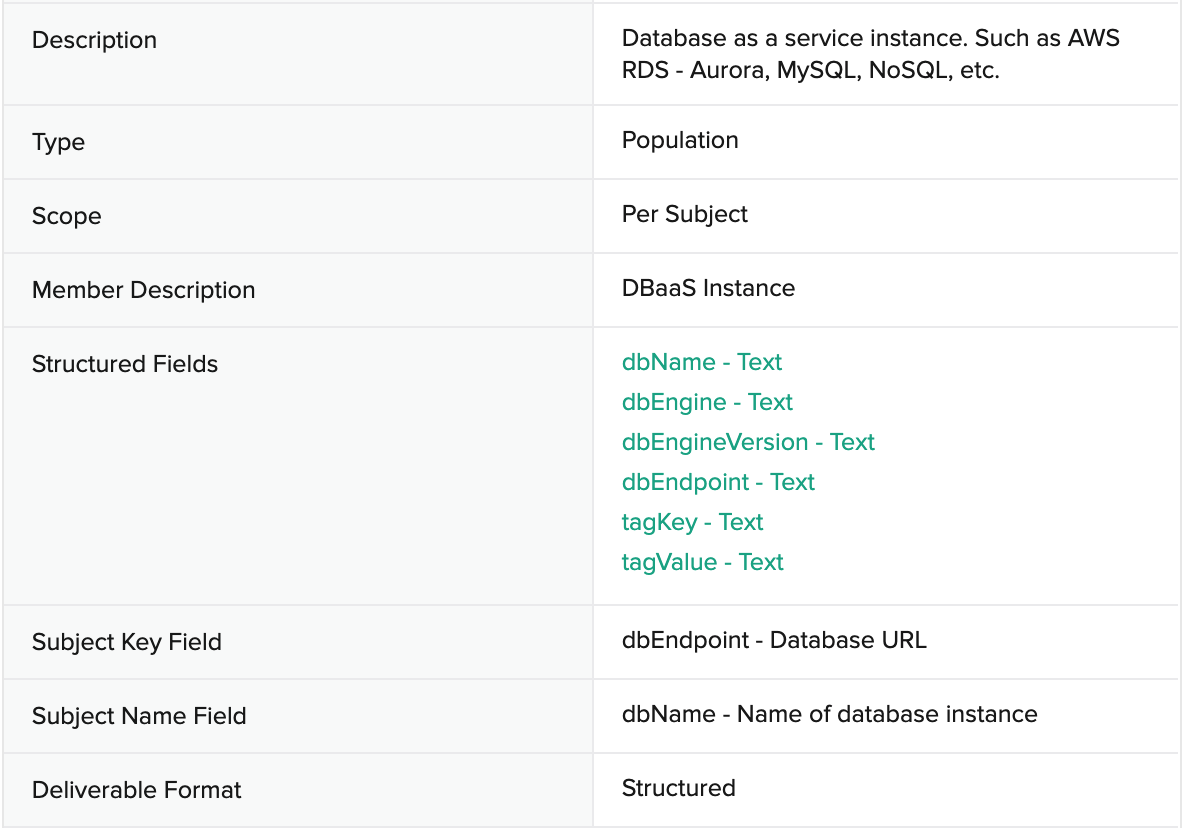
Population: DBaaS Instances - US Regions
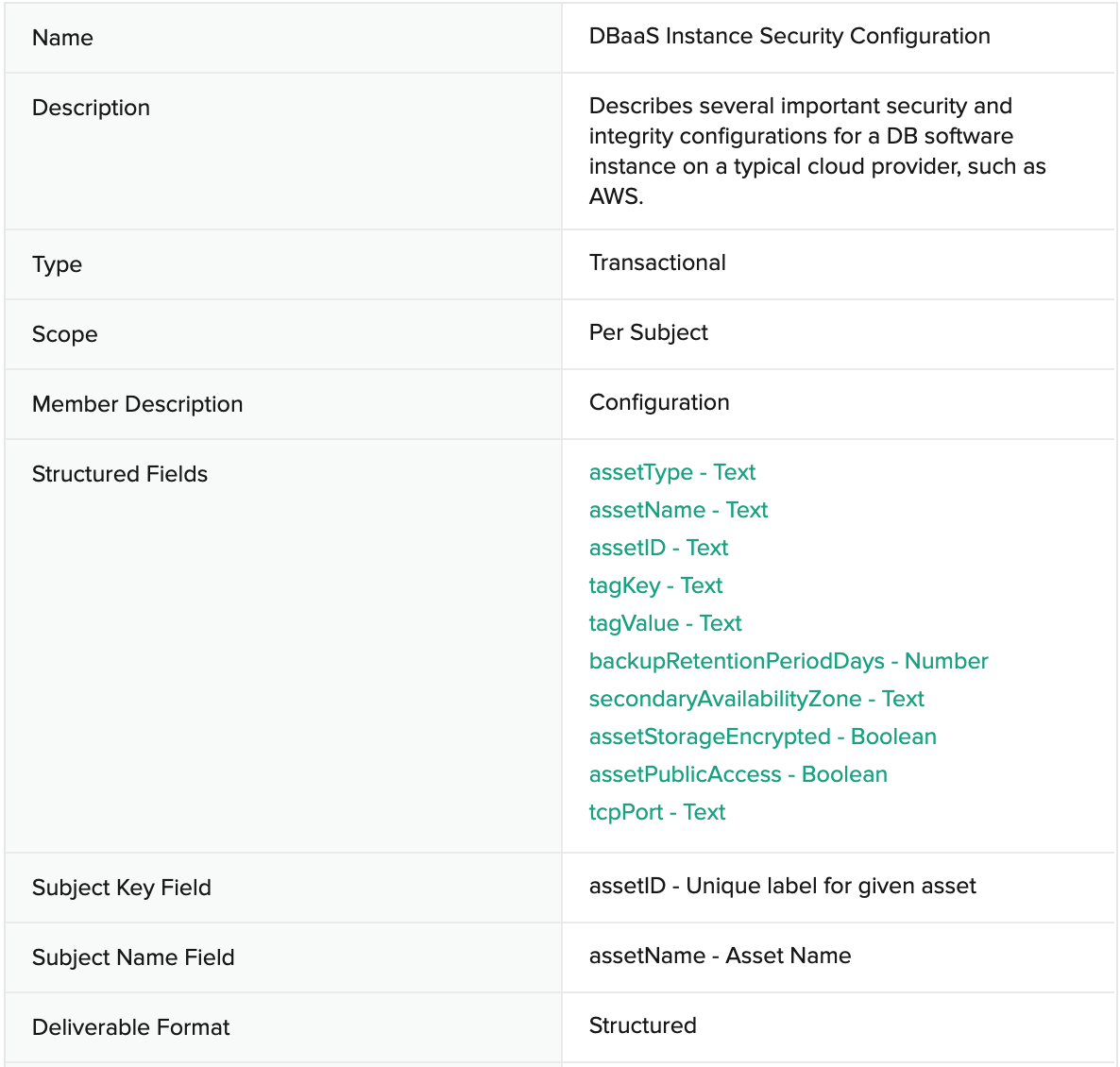
Evidence: DBaaS Instance Security Configuration
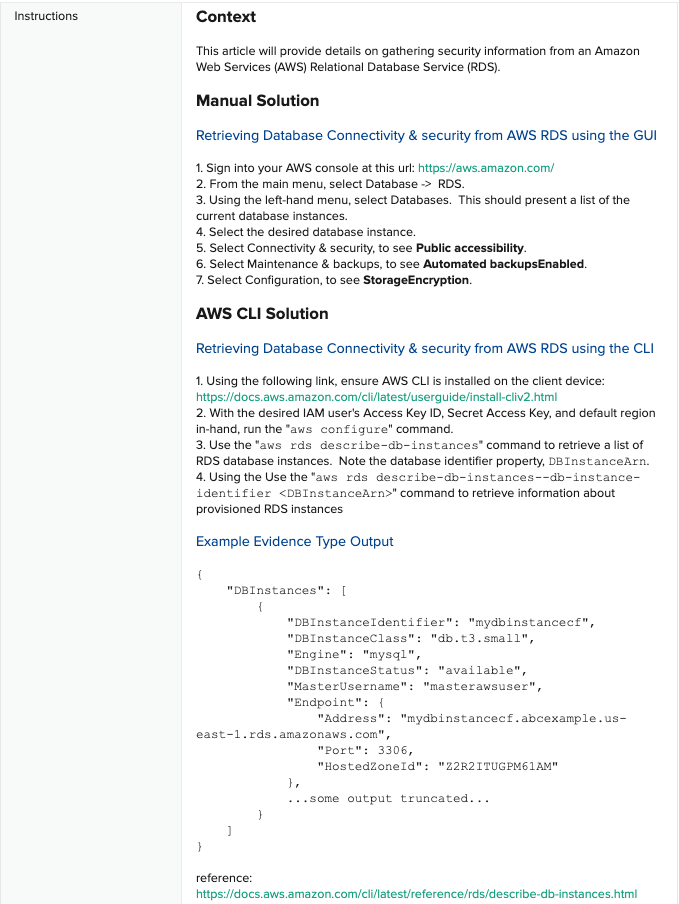
Evidence Collection KB: How to get DBaaS Instance Security Configuration
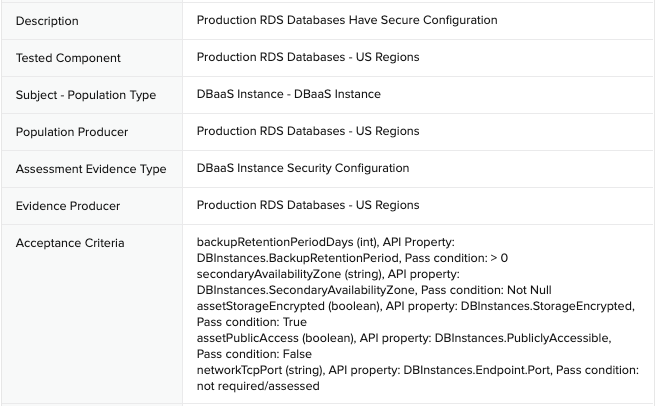
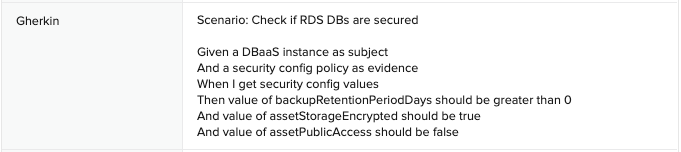
Automated Assessment
Remediation Bot: Secure AWS RDS DBaaS Instance
Because the assessment criteria are numerous, the remediation bot will perform more than one ameliorative step, including:
Changing the DBaaS instance back retention period to 7 days, thereby enabling the automated backup service.
Setting the public accessible property to false.
Due to limitations of the AWS RDS service, the remediation bot is not able to change the encrypted storage setting.
Toggling Test Outcome: Production RDS Databases Have Secure Configuration
Toggle to Fail
Based on the test assessment criteria, follow these instructions to create conditions for a failed test.
- Login to AWS console at https://aws.amazon.com, then navigate to the AWS RDS service panel.
- From the Amazon RDS console, navigate to the database list by clicking Databases on the left.
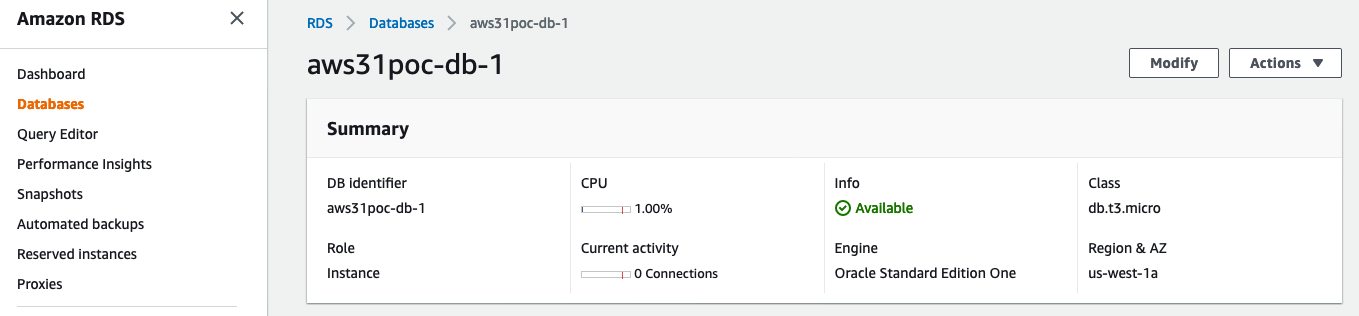
- Click on the database that has a label similar to
-db-1. - Click the Modify button on the upper-right of the window.
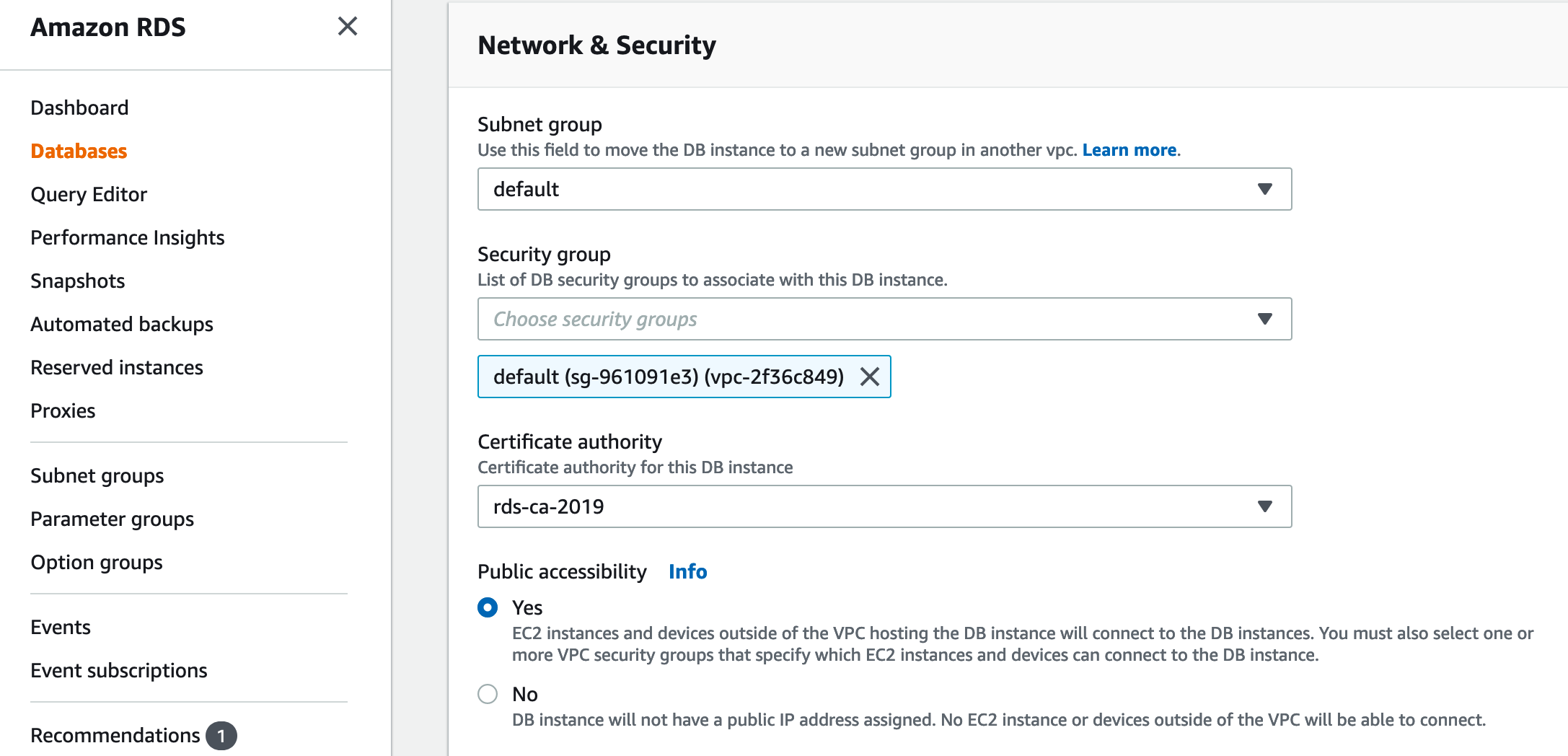
Scroll down to the Network & Security section, then set Public accessibility to “Yes.” You may need to expand a section called “Additional connectivity configuration” to access this setting.
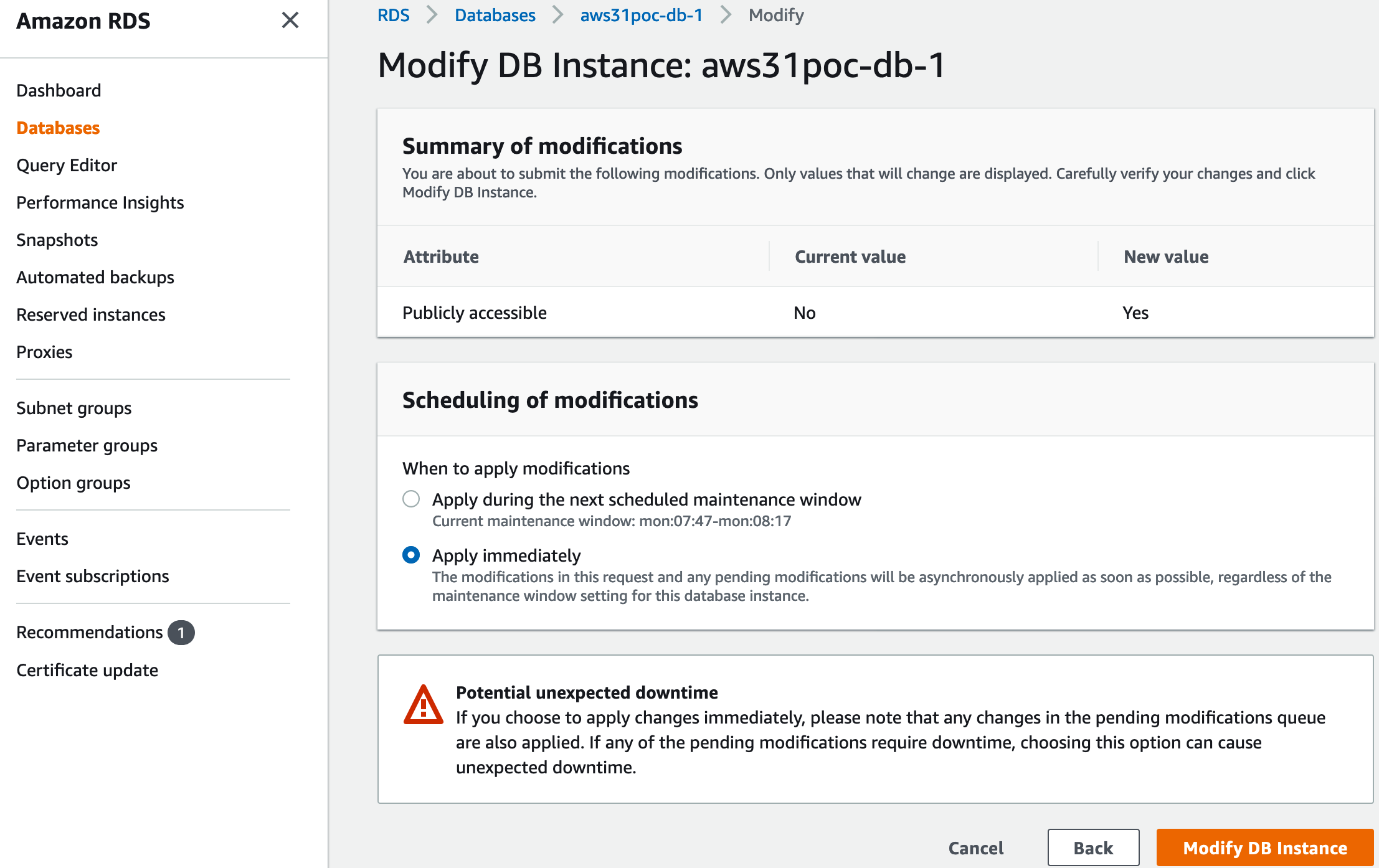
Scroll down further and click Continue.
On the next screen, set Scheduling of modifications to Immediately and click Modify DB instance.
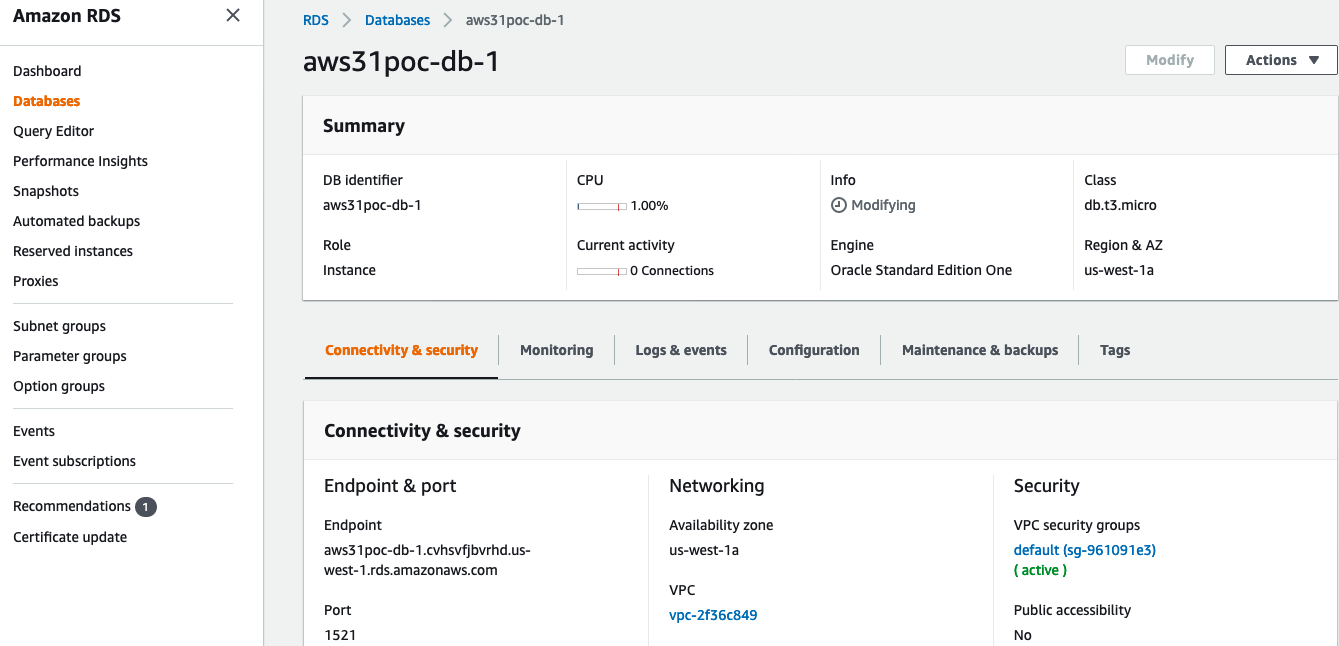
Because AWS RDS takes some time to enact the changes, please wait 1-2 minutes and verify that the setting has changed by refreshing the database view until you see Public accessibility setting set to “Yes.”
Toggle to Pass
Based on the test assessment criteria, follow these instructions to create conditions for a passed test.
Login to AWS console at https://aws.amazon.com, then navigate to the AWS RDS service panel.
From the Amazon RDS console, navigate to the database list by clicking Databases on the left.
Click on the database that has a label similar to
-db-1. Click the Modify button on the upper-right of the window.
Scroll down to the Network & Security section, then set Publicly accessibility to “No.” You may need to expand a section called “Additional connectivity configuration” to access this setting.
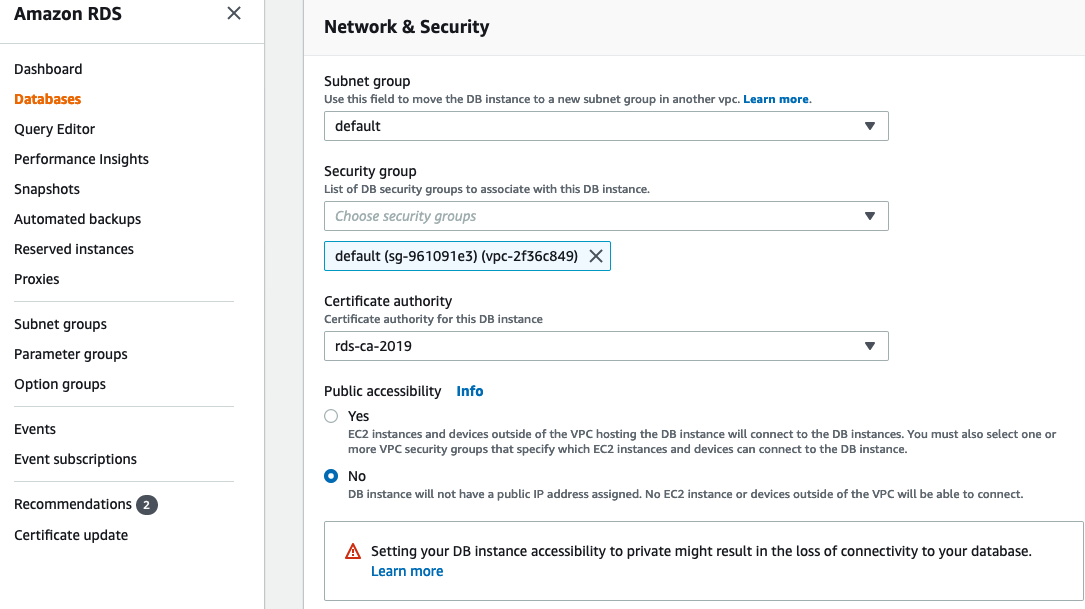
Scroll down further and click Continue.
On the next screen, set Scheduling of modifications to Immediately and click Modify DB instance.
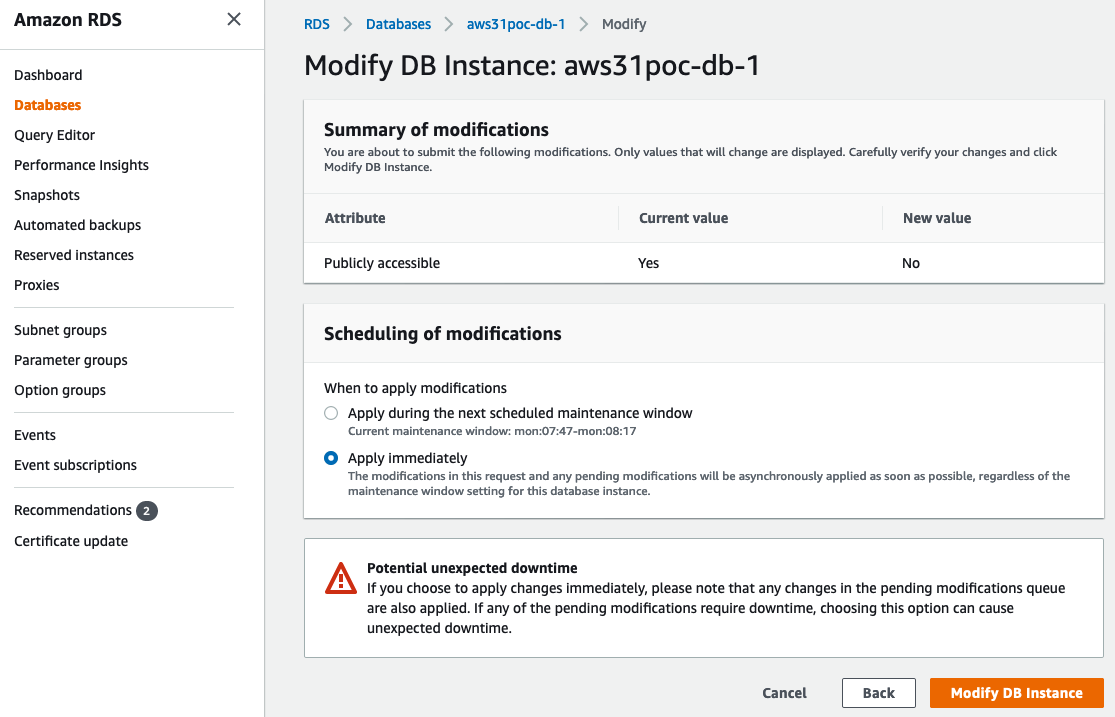
Because AWS RDS takes some time to enact the changes, please wait 1-2 minutes before further test runs.
CONGRATULATIONS ON COMPLETING ALL 5 CONTROL TEST SECTIONS!
Time to enjoy a well deserved coffee break.
Appendix A
