Guide Sections
AWS POC Asset Removal
We can remove the functions and infrastructure deployed in the POC by again using Terraform triggered by Github Actions. The steps should be followed in the order presented. Failure to follow these steps in order may result in a manual clean effort for all assets.
Asset Removal Summary
- Review the Removal Notes
- Follow steps for Bot Removal
- Follow steps for POC Infrastructure Removal
Removal Notes
Due to the way AWS works, even after the asset removal command was received and processed by AWS API, some items can take a few minutes to actually complete. For example, RDS DBaaS instances can take up to 10 minutes or longer to finish removing. Or, in the case of EC2 instances, the item continues to show but it is in a ‘terminated’ state, which means it has been cleaned up.
The following Assets are intentionally not removed during the POC Infrastructure removal. These assets are required for evidence collection during Bot execution. Deletion of these assets should ONLY be done when tearing down the Bot deployment and are to be manually deleted from AWS.
- The S3 bucket,
[customer friendly name]-neverfail-s3-evidence-repository-1, serving as the Evidence Repository. Location is based on the region the S3 bucket was deployed too and can be viewed in the S3 service of the AWS management console. - The user,
[customer friendly name]-user-1, created to populate the user’s secret key and access key in AWS secret manager. These are used by the bots. The user can be viewed in the IAM service of the AWS management console. - The secret,
[customer friendly name]-secret-1, created for use with bots execution. Location is based on the region the Secrets was deployed too and can be viewed in the Secrets Manger service of the AWS management console.
Bot Removal Steps
Once the POC has completed, you can use Terraform to tear down the functions provisioned during this POC.
- Visit your aws-functions-deployment-template Github repository.
- Click on the ‘apply’ file in the file list to open the file view.
- Delete the file by locating and clicking the trashcan icon on the right-hand side of the window
- Commit changes, then GitHub Actions will initiate a Terraform destroy of the environment.
- Visit the Actions tab in your repository and monitor the progress. It should take roughly two minutes to complete the bot tear down. Do not proceed with the next step until this is complete.
- Go to Settings, scroll all the way down and click Delete this repository.
- Copy/paste the repository name into the confirmation window and click Delete.
POC Infrastructure Removal Steps
The POC Infrastructure can be removed independently of the Bot infrastructure. You can use Terraform to tear down the infrastructure provisioned during this POC.
- Navigate into the /aws-deployment/terraform/ folder in your “aws-deployment” Github repository.
- Click on the ‘apply’ file in the file list to open the file view.
- Delete the file by locating and clicking the trashcan icon on the right-hand side of the window.
- Commit changes, then GitHub Actions will initiate a Terraform destroy of the environment.
- Visit the Actions tab in your repository and monitor the progress. It should take roughly two minutes for Terraform to complete but you will see other residual items per Removal Notes above.
- Confirm asset removal in the AWS management panel or resource group view. Do not proceed with the next step until this is complete.
- Go to Settings, scroll all the way down and click Delete this repository.
- Copy/paste the repository name into the confirmation window and click Delete.
Troubleshooting Steps
We have tried to capture and handle all possible scenarios during the infrastructure deployment, but due to the complexity of the operation, it is possible that something can go wrong. If you receive an error during the Terraform job, first, let the job complete, then afterwards, try re-running the job by clicking the Re-run jobs button on the top-right. If you still have problems, feel free to reach out to your engagement lead for assistance.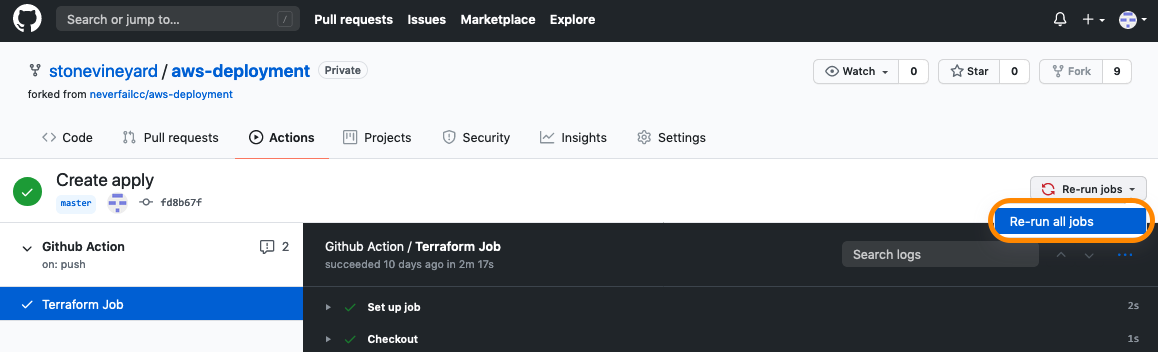
S3 Bucket Removal Steps
You will need to empty, then delete the S3 bucket used for Evidence.
Empty S3 Bucket
- Sign in to the AWS Management Console and open the Amazon S3 console at https://console.aws.amazon.com/s3/.
- In the Bucket name list, select the option next to the name of the bucket that you want to empty and then choose Empty.
- On the Empty bucket page, confirm that you want to empty the bucket by entering the bucket name into the text field, and then choose Empty.
- (Optional) Monitor the progress of the bucket emptying process on the Empty bucket: Status page.
https://docs.aws.amazon.com/AmazonS3/latest/user-guide/empty-bucket.html
Delete S3 Bucket
- Sign in to the AWS Management Console and open the Amazon S3 console at https://console.aws.amazon.com/s3/.
- In the Buckets list, select the option next to the name of the bucket that you want to delete and then choose Delete at the top of the page.
- On the Delete bucket page, confirm that you want to delete the bucket by entering the bucket name into the text field, and then choose Delete bucket.
https://docs.aws.amazon.com/AmazonS3/latest/user-guide/delete-bucket.html