Guide Sections
Azure POC Asset Removal
We can remove the functions and infrastructure deployed in the POC by again using Terraform triggered by Github Actions.
Asset Removal Summary
- Review the Removal Notes
- Follow steps for Bot Removal
- Follow steps for POC Infrastructure Removal
Removal Notes
Please be aware that some assets will take some time to delete and these will put into a deleting status before they are removed from the Azure portal. For example, the virtual machines can take a couple minutes while they are on an “unknown” state. The entire removal task should take from 10 to 15 minutes total.
The following Assets are intentionally not removed during the POC Infrastructure removal. These assets are required for evidence collection during Bot execution. Deletion of these assets should ONLY be done when tearing down the Bot deployment and are to be manually deleted from Azure.
- Evidence resource group:
<customer friendly name>-evidence-rg-1 - Key Vault resource group:
<customer friendly name>-key-vault-rg-1
Bot Removal Steps
Once the POC has completed, you can use Terraform to tear down the functions provisioned during this POC.
- Visit your azure-functions-deployment-template Github repository.
- Click on the ‘apply’ file in the file list to open the file view.
- Delete the file by locating and clicking the trashcan icon on the right-hand side of the window
- Commit changes, then GitHub Actions will initiate a Terraform destroy of the environment.
- Verify GitHub Actions are successful before moving on.
- Go to Settings, scroll all the way down and click Delete this repository.
- Copy/paste the repository name into the confirmation window and click Delete.
POC Infrastructure Removal Steps
To delete the Azure POC assets, use the GitHub site to delete the file called apply and commit the change to the master branch. GitHub Actions will initiate a Terraform destroy of the environment.
- Navigate into the /azure-deployment/terraform/ folder in your “azure-deployment” Github repository.
- Click on the ‘apply’ file in the file list to open the file view.
- Delete the file by locating and clicking the trashcan icon on the right-hand side of the window.
- Commit changes, then GitHub Actions will initiate a Terraform destroy of the environment.
- Verify GitHub Actions are successful before moving on.
- Confirm asset removal in the Azure portal or resource group view.
- Go to Settings, scroll all the way down and click Delete this repository.
- Copy/paste the repository name into the confirmation window and click Delete.
- Navigate to app registrations in your Azure POC Portal.
- Select the app registration that was created during the POC post configuration script. The app registration name will be [customer name]-nfcc-[increment number].
- Select Delete on the app registration profile page to remove registration.
Troubleshooting Steps
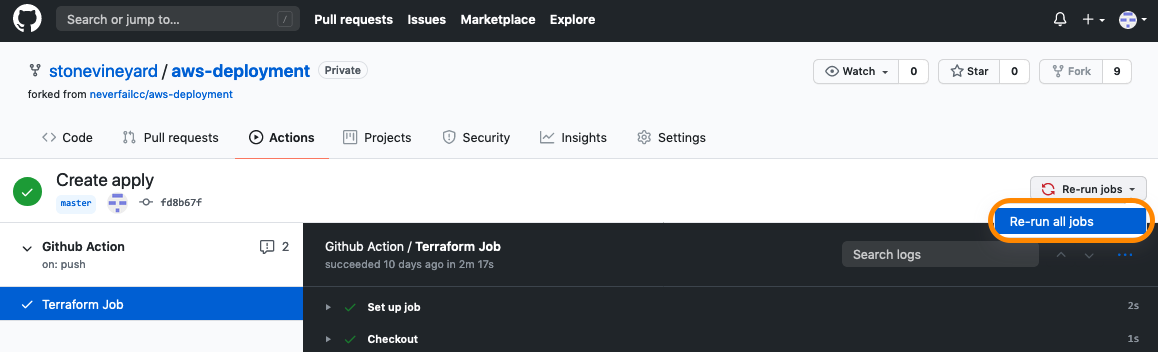
We have tried to capture and handle all possible scenarios during the infrastructure deployment, but due to the complexity of the operation, it is possible that something can go wrong. If you receive an error during the Terraform job, first, let the job complete, then afterwards, try re-running the job by clicking the Re-run jobs button on the top-right. If you still have problems, feel free to reach out to your engagement lead for assistance.