How to Sign Up for Jira
Go to https://www.atlassian.com/software/jira - Click Try for Free.

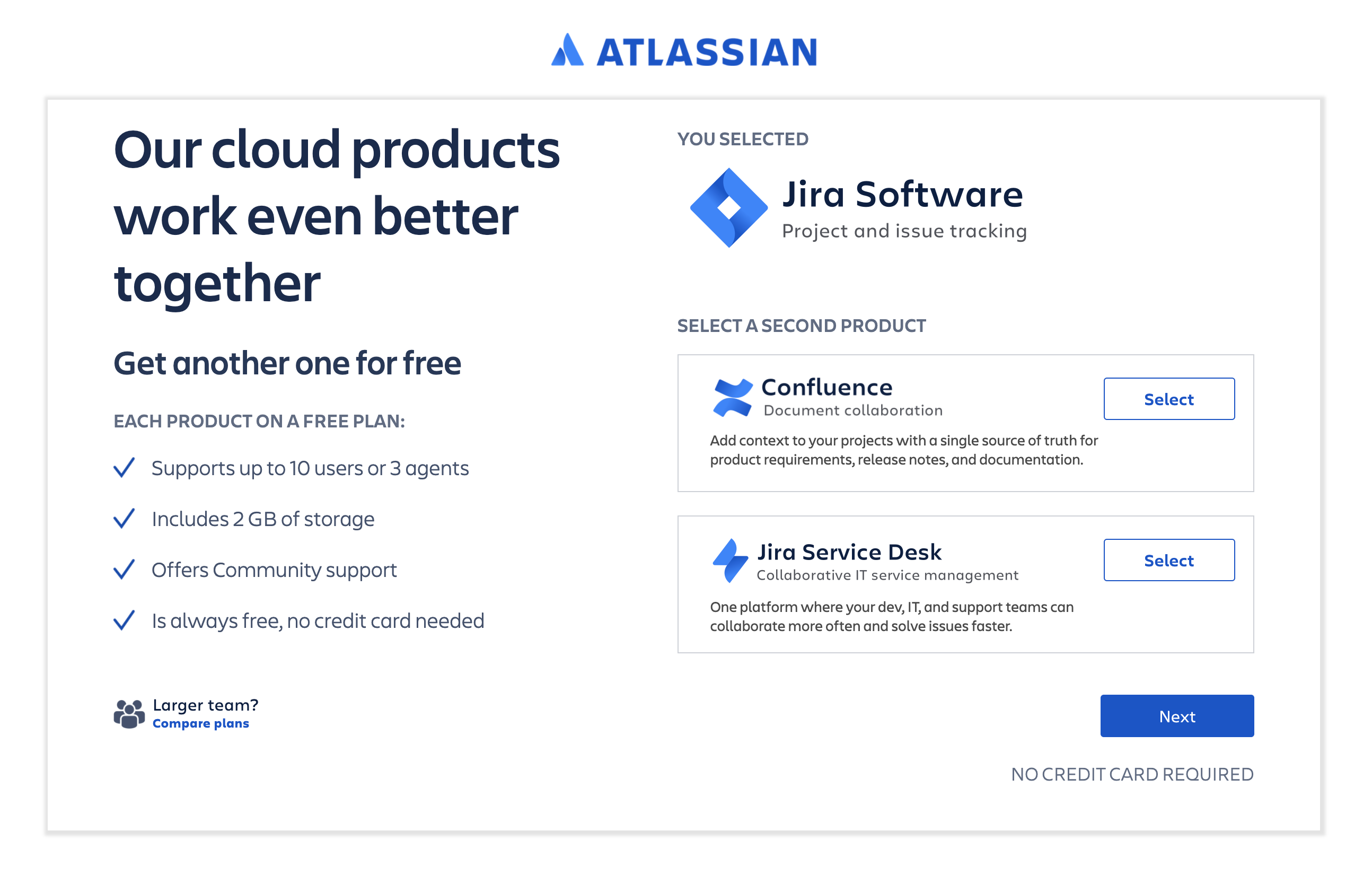
Choose another product screen (optional) - click Next.
Get started by Clicking Sign up with email.

Sign up and agree to terms - click Agree.

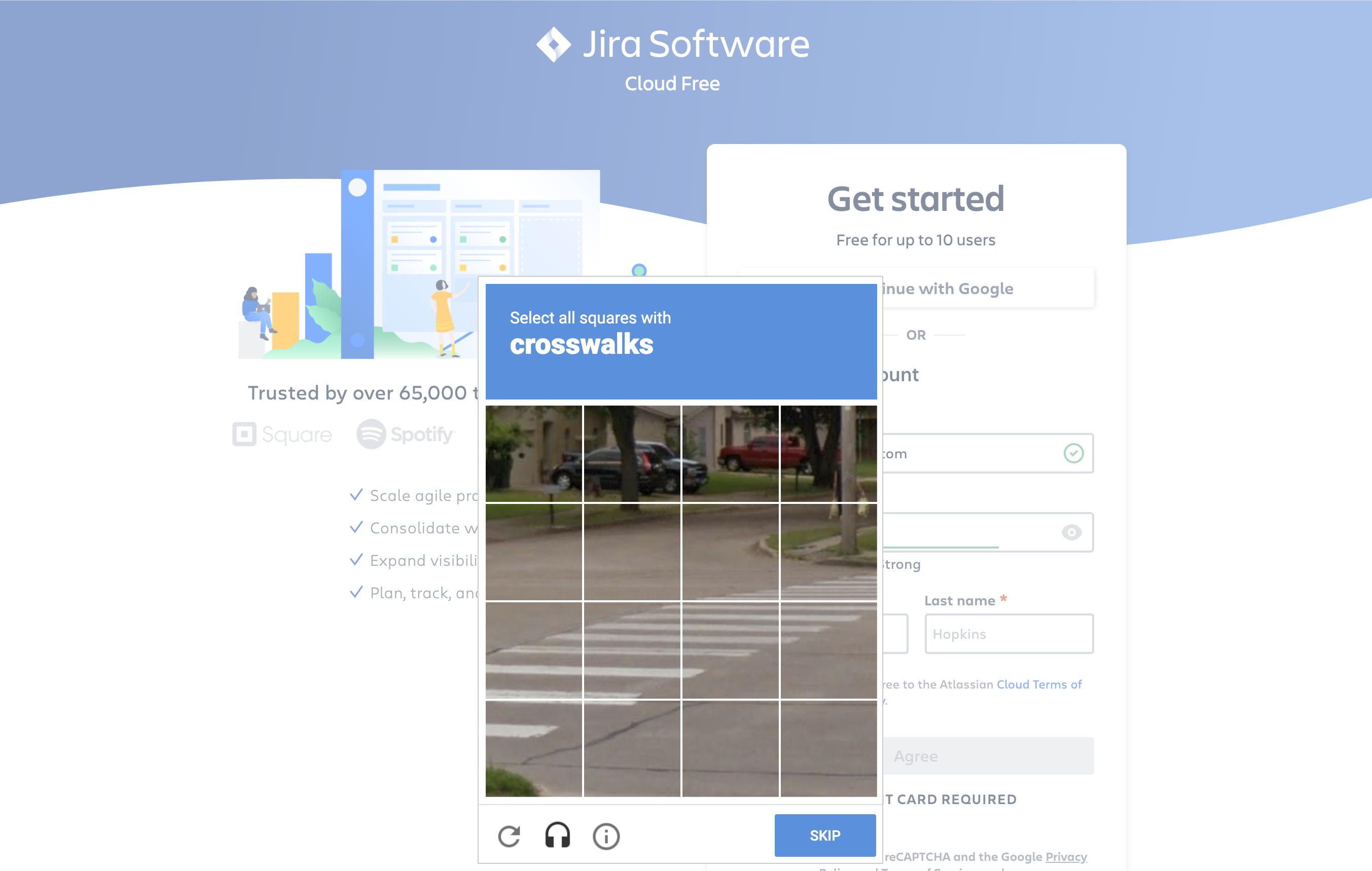
Solve the visual puzzle or click Skip.
Check your email for the verification mail.

Go to your email and click Yes, verify me!

Give your site a name and click Confirm.

Optional - Invite team members or click Skip.

Optional - Help set up or click Skip.

Optional - Help set up or click Skip.

Choose a template - click Select.

Create a project and click Create.

You are now at your dashboard!

×
![]()